
This document outlines the procedure for capturing complete network traffic on port 5061 between the server and the device. Additionally, it details how to capture all traffic on port 5061 originating from the device.
TABLE OF CONTENTS
Traffic from/to port 5061 between server and device
Capturing TLS Traffic with the SSLKEYLOGFILE Environment Variable
This document outlines the procedure for capturing TLS master keys to facilitate the decryption of SIP TLS and SRTP traffic. This method allows for decryption without requiring changes to configurations (such as ciphers) or logging partially decrypted traffic (using pjsip set logger).
STEP 1: Preparation on PBXware System
Modify the sh/asterisk file:
Connect to the PBXware system via SSH.
Edit the
sh/asteriskfile.Add the line below:
CMD="chroot $CHROOT /bin/env -C /tmp SSLKEYLOGFILETMP=/tmp/sslkeys.log LD_PRELOAD=/tmp/libsslkeylog.so:/usr/lib64/libjemalloc.so.1 asterisk -U asterisk -G asterisk -d -g"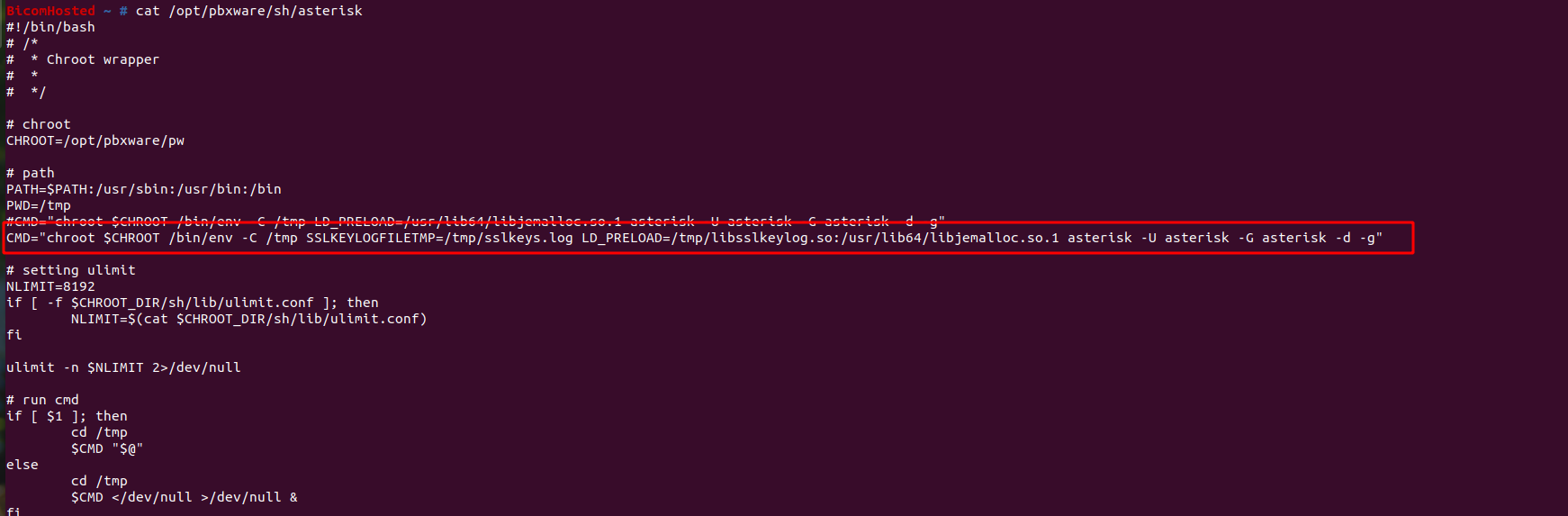
Apply the changes
To ensure the changes take effect, restart the Asterisk service using the following commands:
/opt/pbxware/sh/asterisk -rx 'core stop now'
/opt/pbxware/sh/asterisk
NOTE: Ensure that the original, unmodified CMD line in the sh/asterisk file is commented out (e.g., by adding a # at the beginning of the line) to prevent conflicts. After testing is complete, revert the changes made to the sh/asterisk file by either deleting or commenting out the new added CMD line and uncommenting the original line. Then, restart Asterisk again.
STEP 2: Capturing Network Traffic (tcpdump)
Start the tcpdump capture:
It is essential to start
tcpdumpbefore the device connects to the PBXware system. Ideally, reboot the device completely and begin thetcpdumpcapture during the device's boot process. This ensures that the initial TLS handshake, including theClient Hellomessage (tcp.stream == 2filter in Wireshark), is captured.
On the PBXware system, enter cd /opt/pbxware and initiate a network capture using the
tcpdumpcommand:tcpdump -i any port 5061 and host x.x.x.x -s 0 -w tls.pcap & SSLKEYLOGFILETMP=/tmp/sslkeys.log LD_PRELOAD=/tmp/libsslkeylog.so
Replace x.x.x.x with your public IP address.
Stop the tcpdump capture
- Once the issue has been replicated and the desired traffic has been captured, the tcpdump process, running in the background, should be terminated. (The process can be found by ps fax | grep tcpdump and then terminating process using kill -9 $PIDofTheProcess.)

Locate the SSL keys and tcpdump.pcap
- The TLS keys generated during the capture will be located in the following file on the PBXware system:
/opt/pbxware/pw/tmp/sslkeys.log - The captured network traffic data, saved by tcpdump, can be found in the following file on the PBXware system:
/opt/pbxware/tls.pcap
By providing tls.pcap and sskkeys.log to the developers, they should be able to pinpoint the issue further.
However, if you want to investigate this pcap, you need to open it in Wireshark and use the SSL key for decryption. More information can be found by following the link below(Wireshark v3.4+ is recommended):
- https://daniel.haxx.se/blog/2018/01/15/inspect-curls-tls-traffic/
- https://everything.curl.dev/usingcurl/tls/sslkeylogfile.html
- https://gitlab.com/wireshark/wireshark/-/wikis/tls
Traffic from/to port 5061 from the device
This could be achieved by performing PCAP somewhere in the middle or by connecting the phone via PC port.
In this example, I will explain how to connect a phone via a PC port. First, connect a LAN cable between your laptop and the device using the PC port. After that, Wireshark should be opened.
STEP 1: Accessing Interface Options and Capturing Traffic
To begin configuring your capture settings, at the top of the application window, find the main toolbar.
- Click on the "Capture" option within the toolbar. This will open a dropdown menu with various capture-related actions.
- Select "Options": From the "Capture" dropdown menu, choose the "Options" entry. This may open a submenu or a new window.
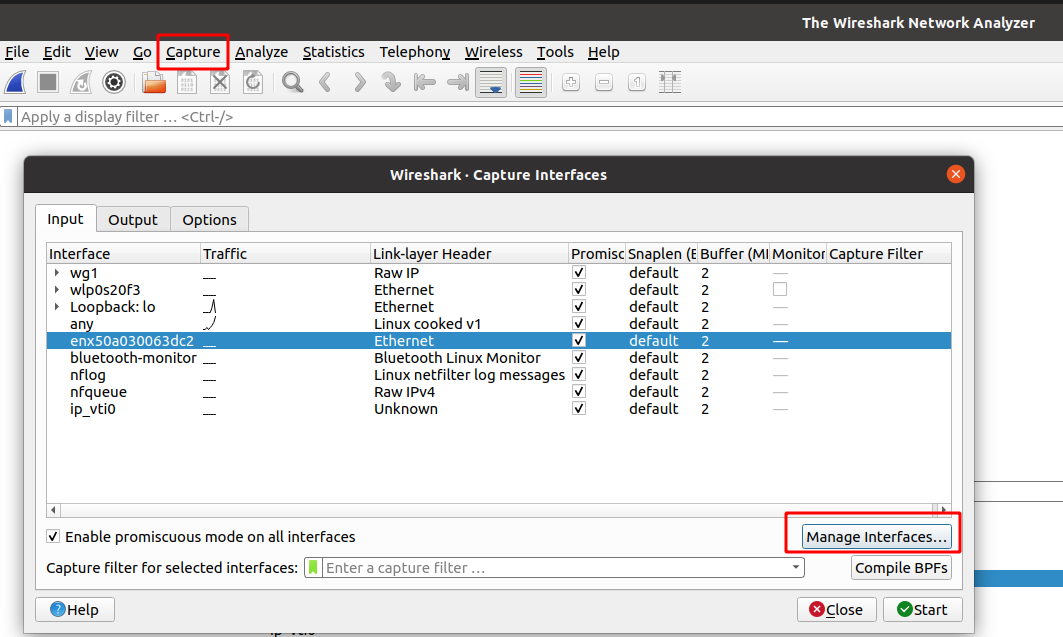
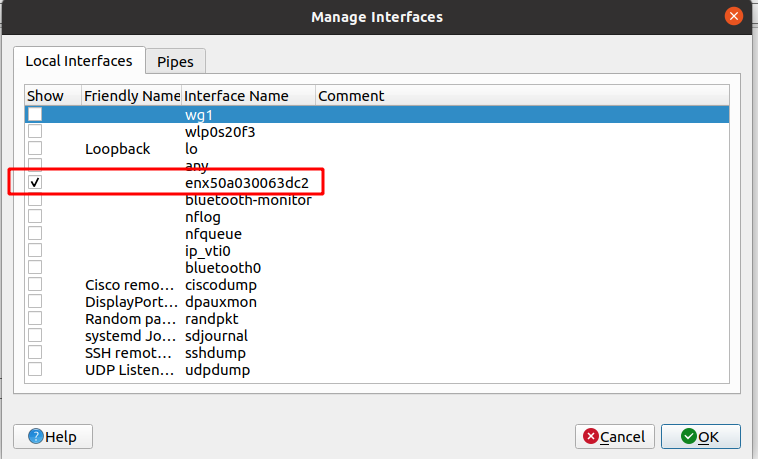
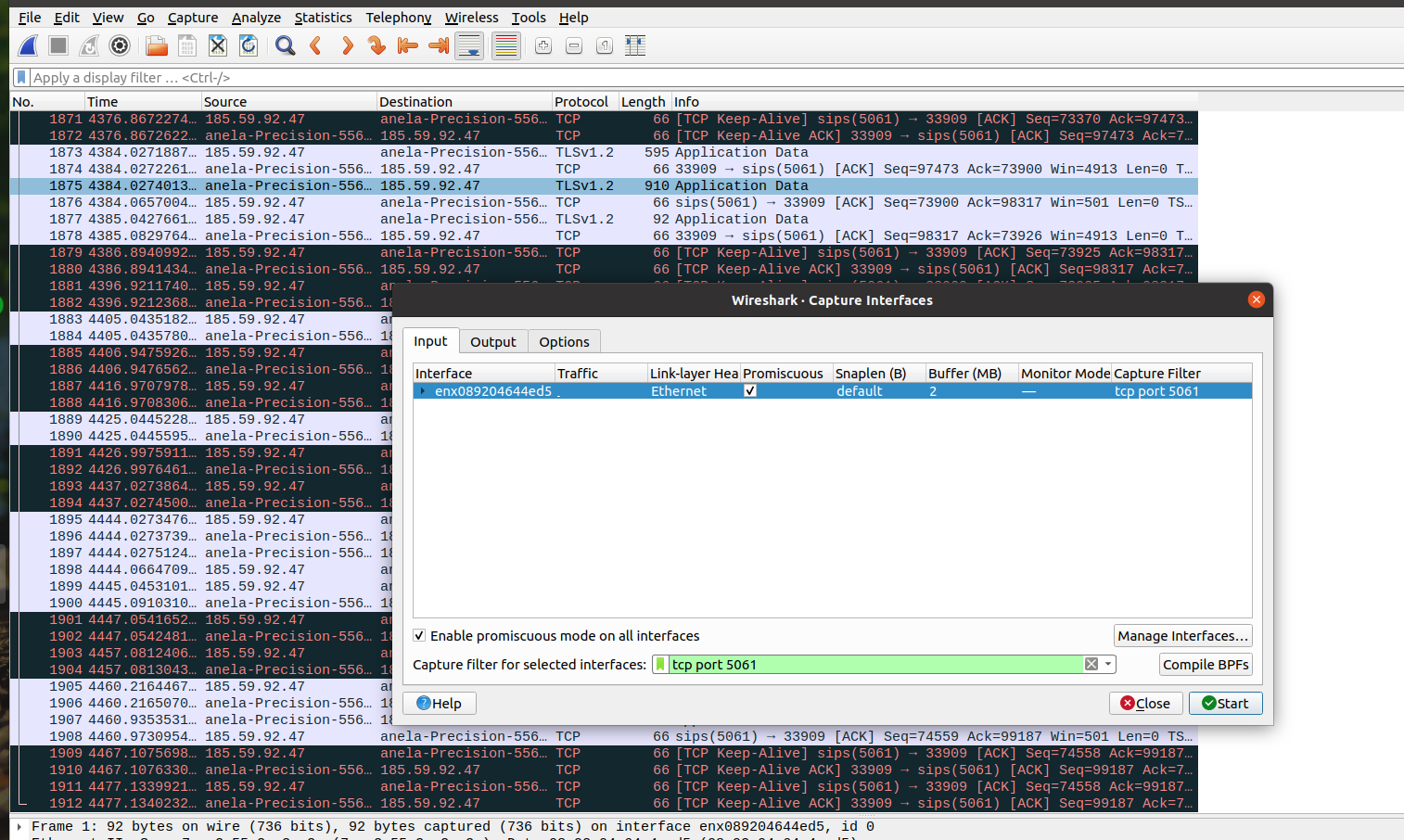
- Open "Manage Interfaces": This action will open the dialog box where you can view and configure network interfaces for capturing traffic. Choose only the interface that will capture the traffic in question. In my case it is enx50a030063dc2. Click on OK.
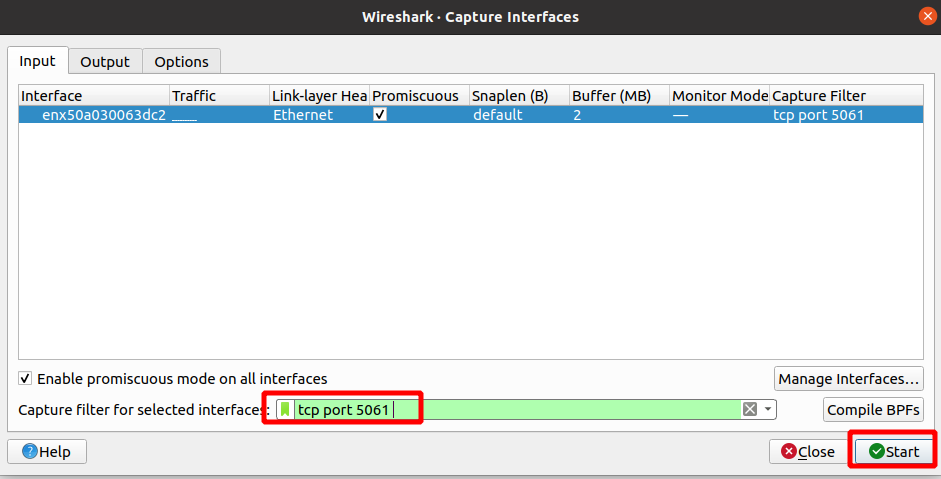
- Filter traffic by entering tcp port 5061 and click on Start.
NOTE: It is essential to start pcap before the device connects to the PBXware system. Ideally, reboot the device completely and begin the pcap capture during the device's boot process.
- The expected output is as follows:
After reproducing the issue, stop the capture and save the file as tls.pcapng.