
With the SERVERware version 5.1 comes an improved shape of feature called Maintenance option.
The idea behind the feature is for the SERVERware admins to schedule a maintenance procedure for the SERVERware environment.
If you navigate to the following path:
System Settings --> Maintenance --> General
you will be able to use the new feature of scheduling maintenance procedures.
On the right-hand side, there is a button "Schedule Maintenance".

If you click on the button, a new pop-up window will appear.
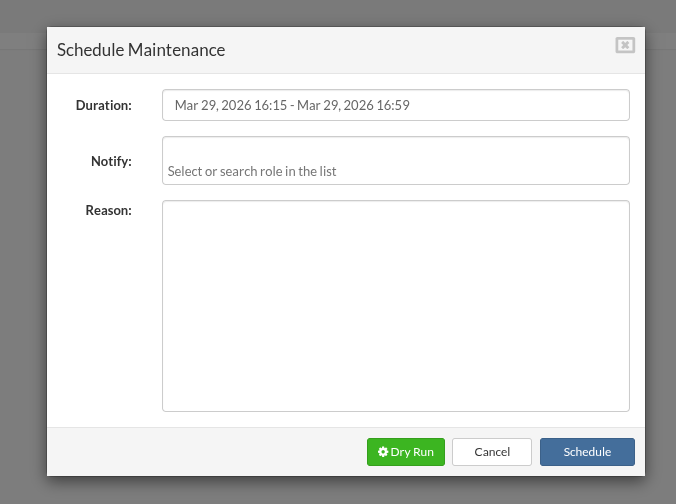
Each of the fields are editable.
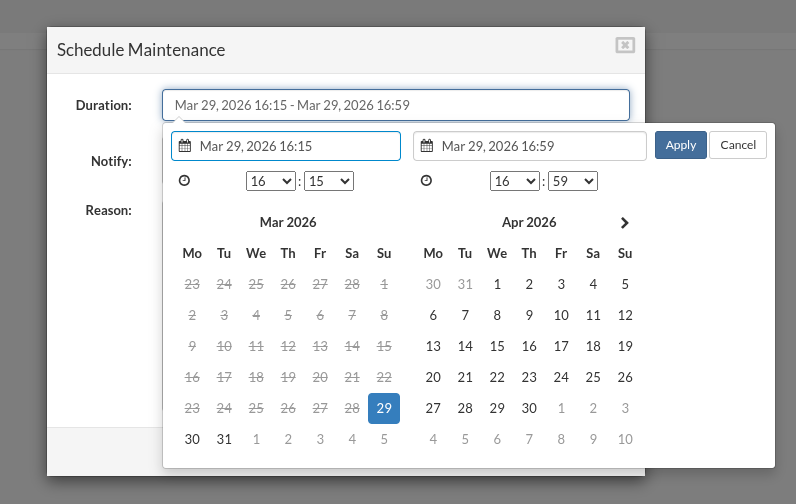
- Duration - allows you to select the time and date of the scheduled maintenance procedure.
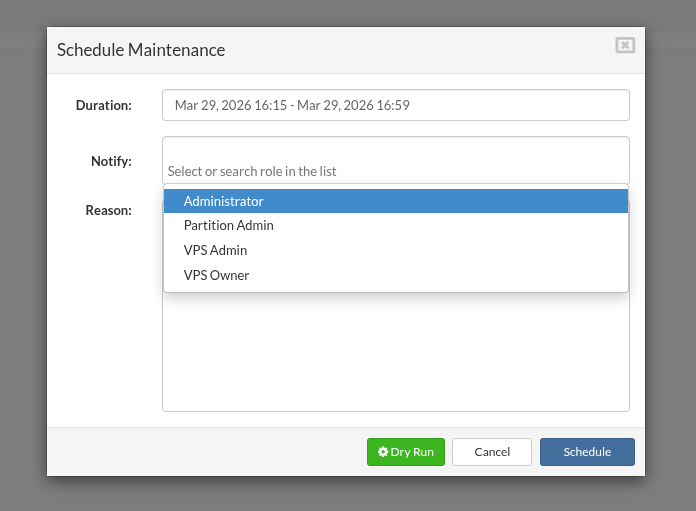
- Notify - allows you to choose which users will be notified about the scheduled maintenance procedure.
- Reason - allows you to write a description of the scheduled maintenance procedure. Value from this field will represent the body of the email that will be sent to the selected users.
If you click on the Duration field, a new drop-down menu window will appear. Here you can choose the time and date for scheduling the maintenance procedure.
If you click on the Notify field, a new drop-down menu window will appear. Here you can choose which type of users will be notified for the scheduled maintenance procedure. You have the option to select one or more type of users to notify about the procedure.
If you click on the Reason field, you can enter the description about why the procedure is being scheduled. Value entered here will be shown as the body of the email being sent to the users.
You fill out these values, and on the bottom you will see that you have few buttons available:
- Dry Run
- Cancel
- Schedule
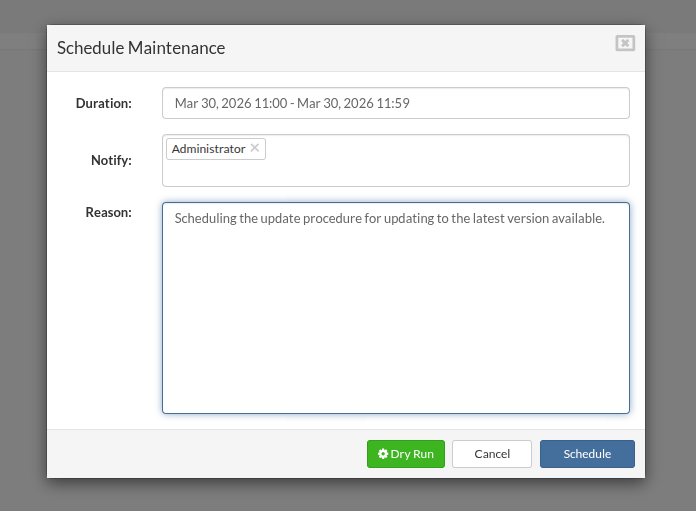
"Dry Run" button is designed for running necessary prechecks in order to see if the maintenance procedure can be scheduled.
If we now click on the "Dry Run" button, necessary checking will be done and if every check is in place, we will see no errors.
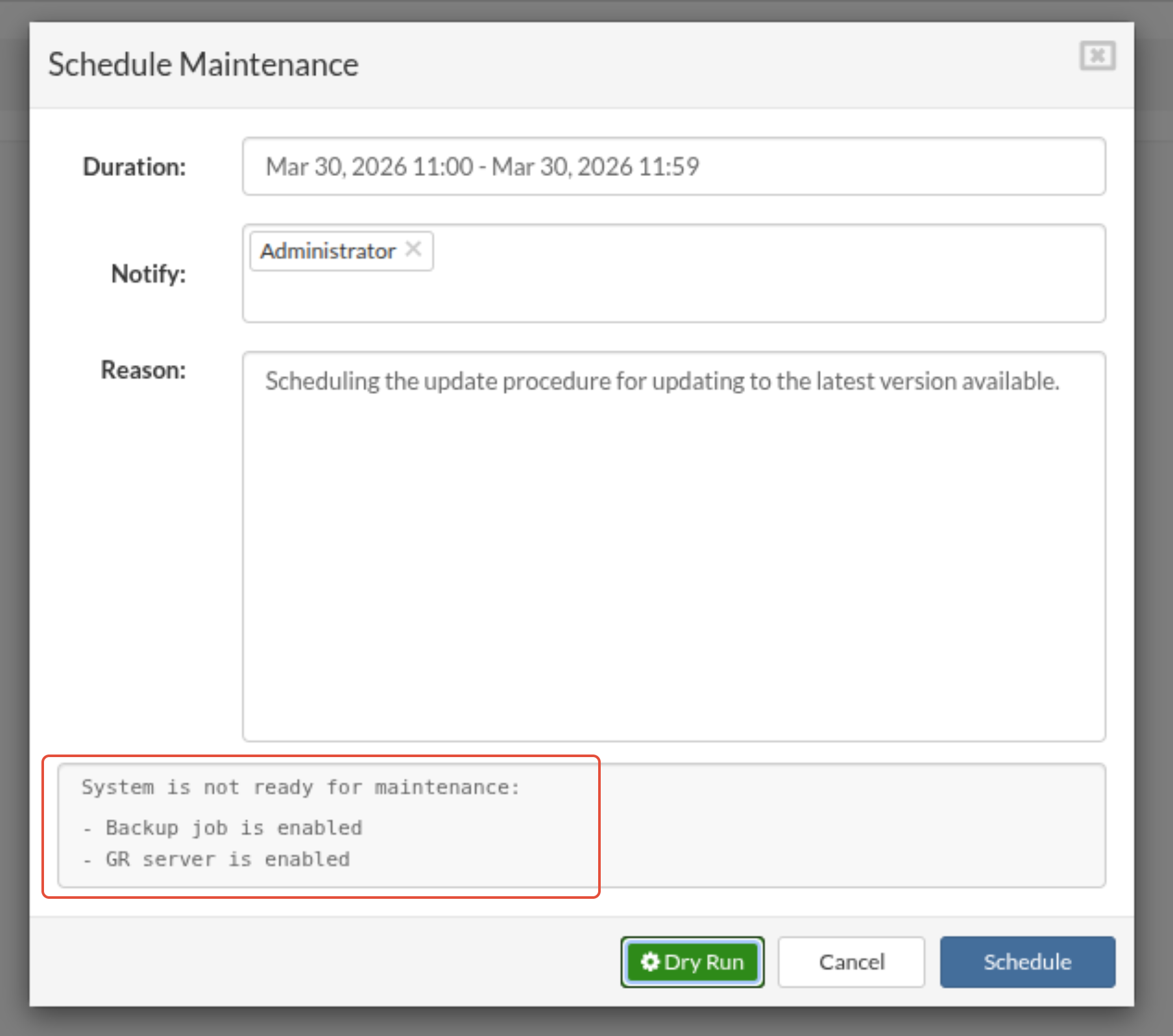
In our situation, there are some messages saying that: "System is not ready for maintenance".
This is completely expected, because this system is currently running - and for system that is running, prechecks that are executed when the "Dry Run" button is clicked will fail.
Some of the checks are:
- Whether the backup jobs are enabled
- Whether the GR jobs are enabled
- Whether the hosts are in Maintenance mode
- Whether the VPS-es are in stable mode.
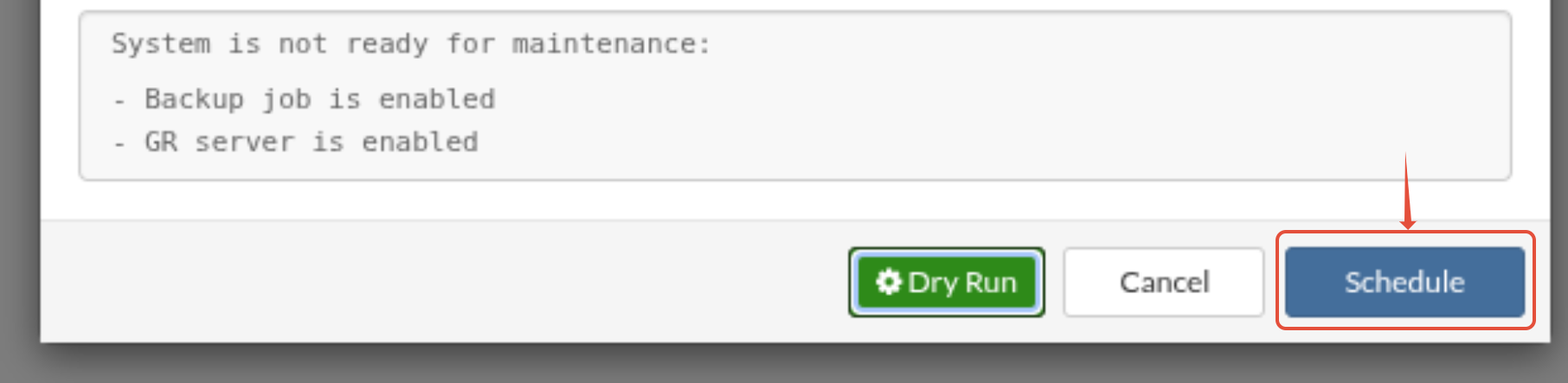
This does not stop the user to schedule a Maintenance procedure. If the user click on the "Schedule" button, they will be able to schedule the maintenance procedure.
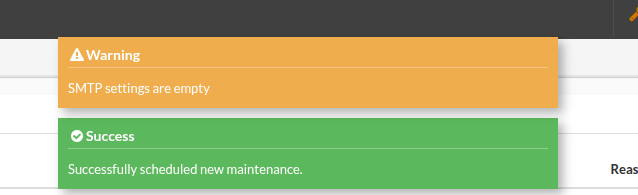
After clicking on the Schedule button, they will see an "Succes" message pop-up on the SERVERware GUI - indicating that the procedure has been scheduled.
If they navigate to the following path:
System Settings --> Maintenance --> General
they will be able to see scheduled maintenance procedure(s) and their history.

Also, the "Schedule Maintenance" button on the right-hand side will be "greyed-out" indicating that only one maintenance job can be scheduled at the time.
On the right-hand side, there are three buttons for the scheduled maintenance procedure:
- Start - to start the procedure.
- Cancel - to cancel the procedure.
- Note - to see more details about the procedure.
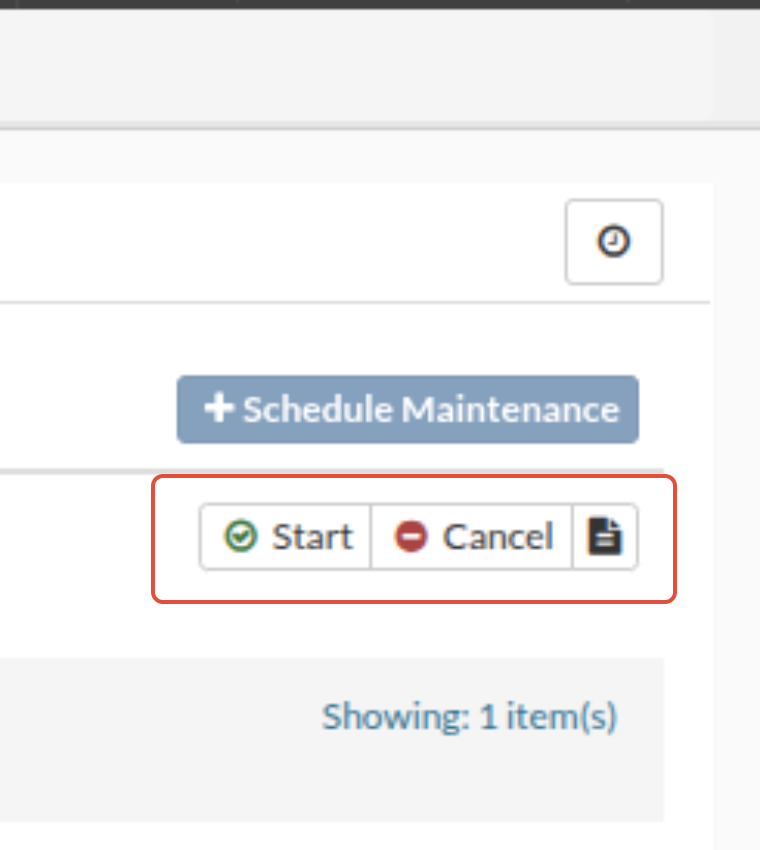
If they click on the "Start" button - the scheduled maintenance procedure will be started. This can be done before the date set on the Scheduled Maintenance procedure.
On the "Start" button click - prechecks that are run when the "Dry Run" button is clicked are also executed. And in our example, we had two warnings; "Backup Job is enabled" and "GR Server is enabled."

We can see that there is a Error pop-up message showing on the SERVERware GUI. The error is showing the same information we have seen when the "Dry Run" button was clicked. In this scenario, the Maintenance Procedure cannot be started because of the Backup and GR jobs are enabled.
If we now disable the Backup and the GR jobs, and try to start the maintenance procedure again, we will get the "Success" pop-up message on the SERVERware GUI.
Also, there will be an orange colored block with the message:"System is under maintenance!"
By clicking on the "Start" button, all the users logged in (besides the admin user that initiated the start) will be logged off from the SERVERware GUI.
Other admin users can log back in again and do actions in GUI as normal.
Users such as VPS Owner, VPS Admin, Partition Admin cannot login into SERVERware GUI while the maintenance procedure is in affect at the moment.
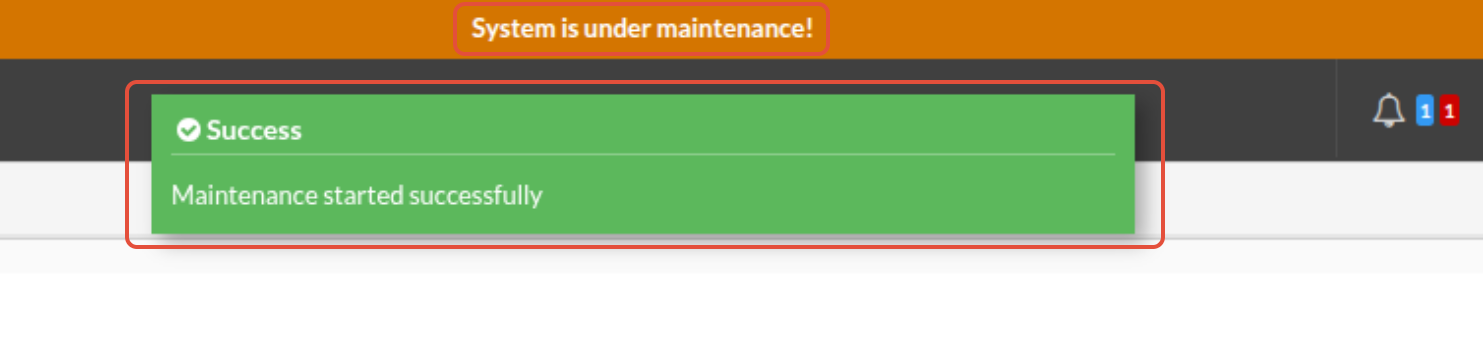
On the scheduled maintenance jobs, we can see that the "Status" of the Maintenance job has changed from "SCHEDULED" to "IN PROGRESS".

If we now navigate to the following path:
Network --> Hosts
we will see that the all the hosts have been put in "Maintenance" mode.
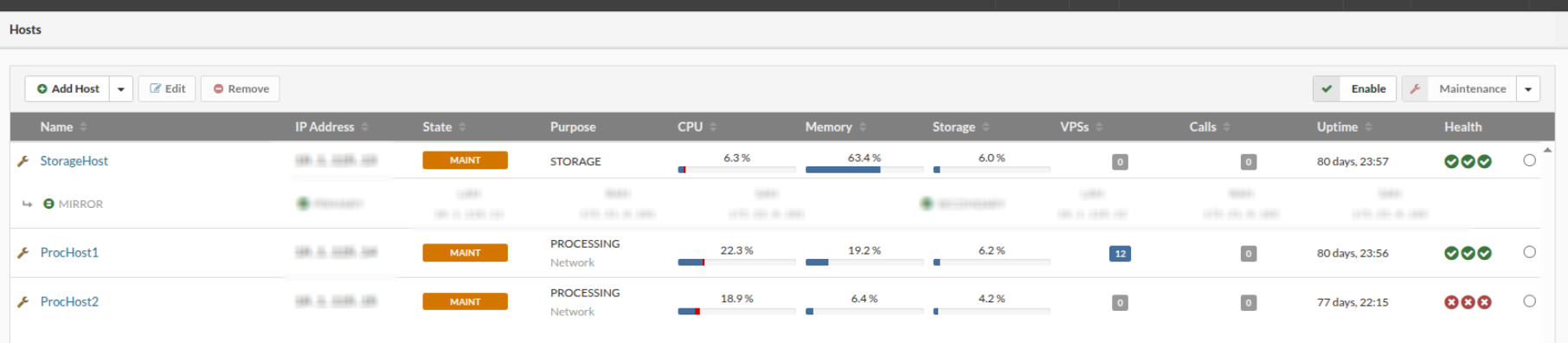
During the Maintenance procedure, an admin can do the necessary updates, changes and whatever actions are necessary.
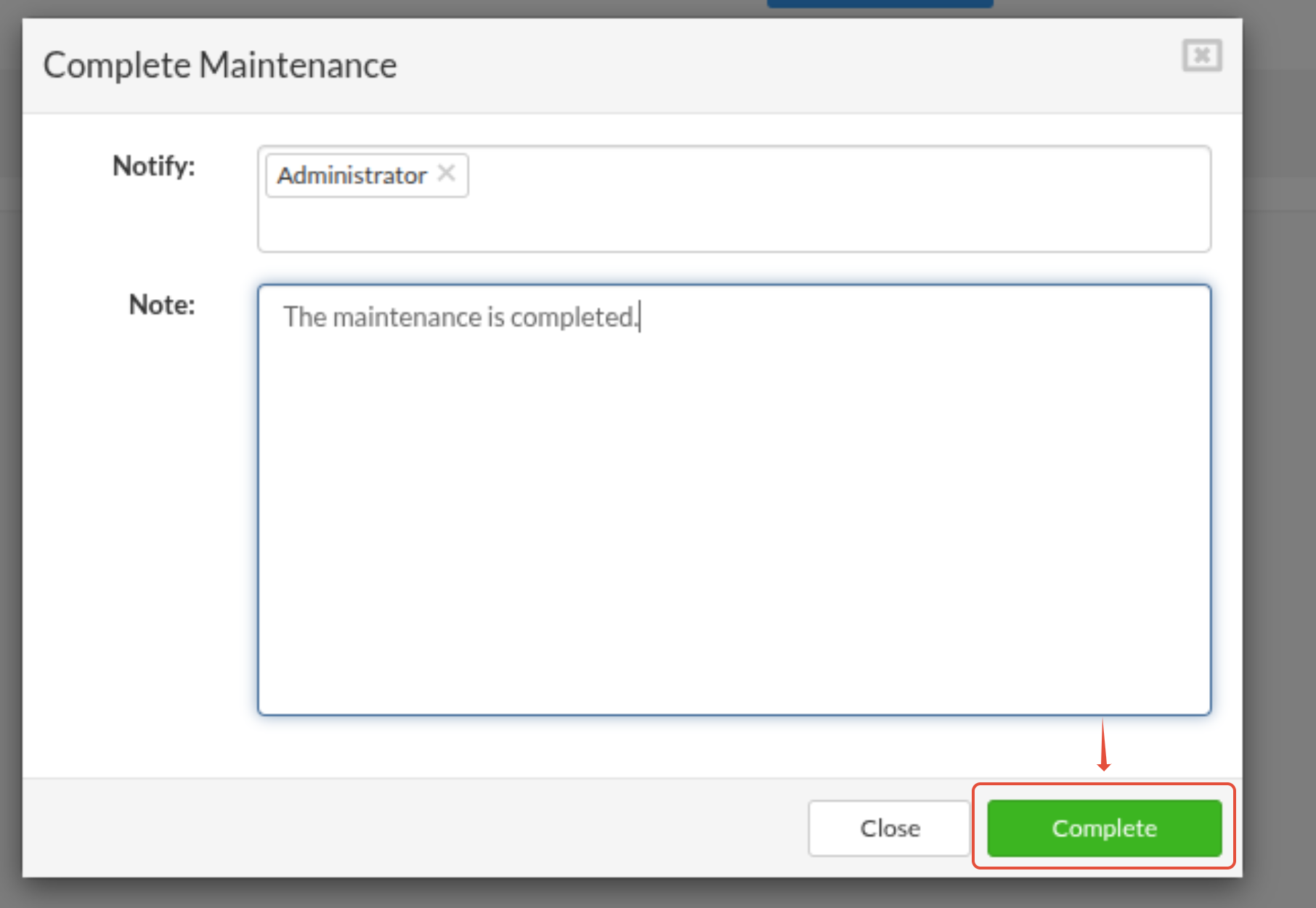
After the necessary actions are done, user can click on the "Complete" button.
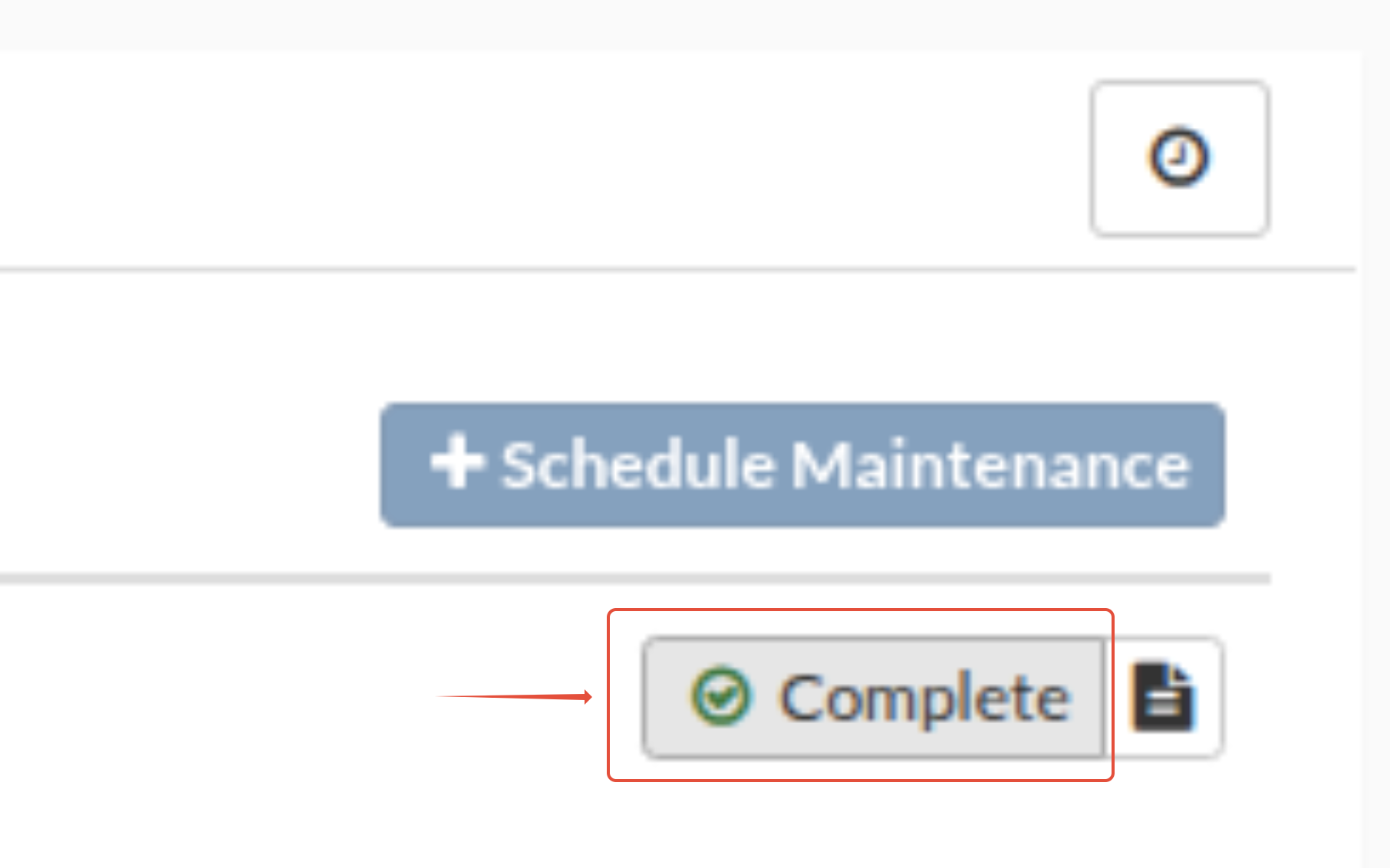
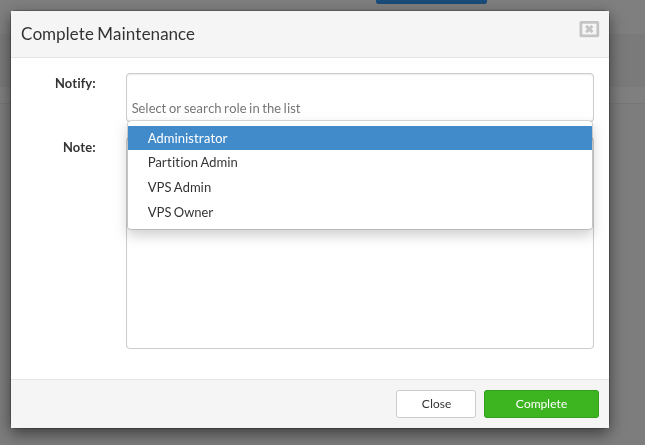
By clicking on the "Complete" button, a new pop-up window will appear, similar to the one when you click on the "Schedule" button.
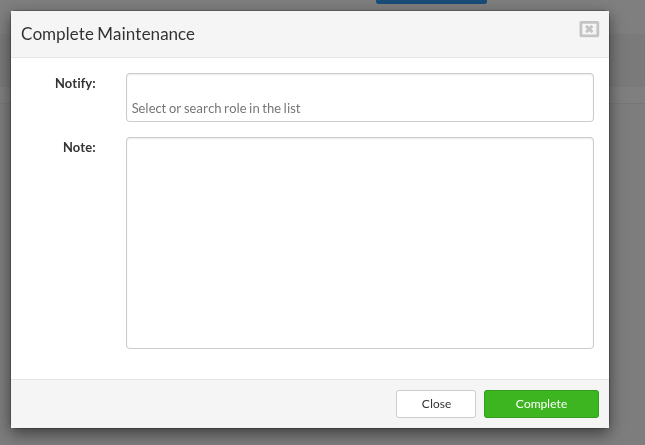
There are two fields in this new window:
- Notify - allows you to choose which users will be notified about the scheduled maintenance procedure.
- Note - allows you to write a description of the completed maintenance procedure. Value from this field will represent the body of the email that will be sent to the selected users.
After filling out these values, user can click on the "Complete" on the bottom right-hand side.
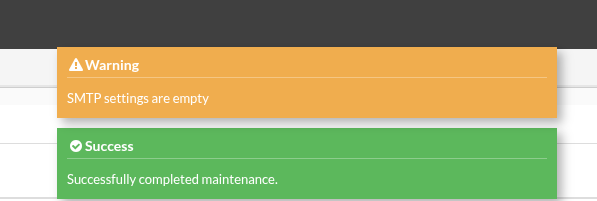
After that, there will be a "Succes" message on the SERVERware GUI:"Successfully completed maintenance." - indicating that the maintenance procedure has been completed successfully.
On the scheduled maintenance jobs, we can see that the "Status" of the Maintenance job has changed from "IN PROGRESS" to "COMPLETED".

Possible statuses of Maintenance are:
- COMPLETED
- COMPLETED WITH ERRORS
- FAILED
If we now navigate to the following path:
Network --> Hosts
we will see that the all the hosts that have been put in "Maintenance" mode are still in the "Maintenance" mode.
We have to enable them manually, one by one as usual.