

Key Components
Prometheus:
Prometheus is a free software application used for event monitoring and alerting. It records metrics in a time series database built using an HTTP pull model, with flexible queries and real-time alerting.
Grafana:
Grafana is a multi-platform open source analytics and interactive visualization web application. It can produce charts, graphs, and alerts for the web when connected to supported data sources. In our use case, Prometheus is the data source in Grafana.
Exporters:
Exporters transform metrics from specific sources into a format that can be ingested by Prometheus.
Overview
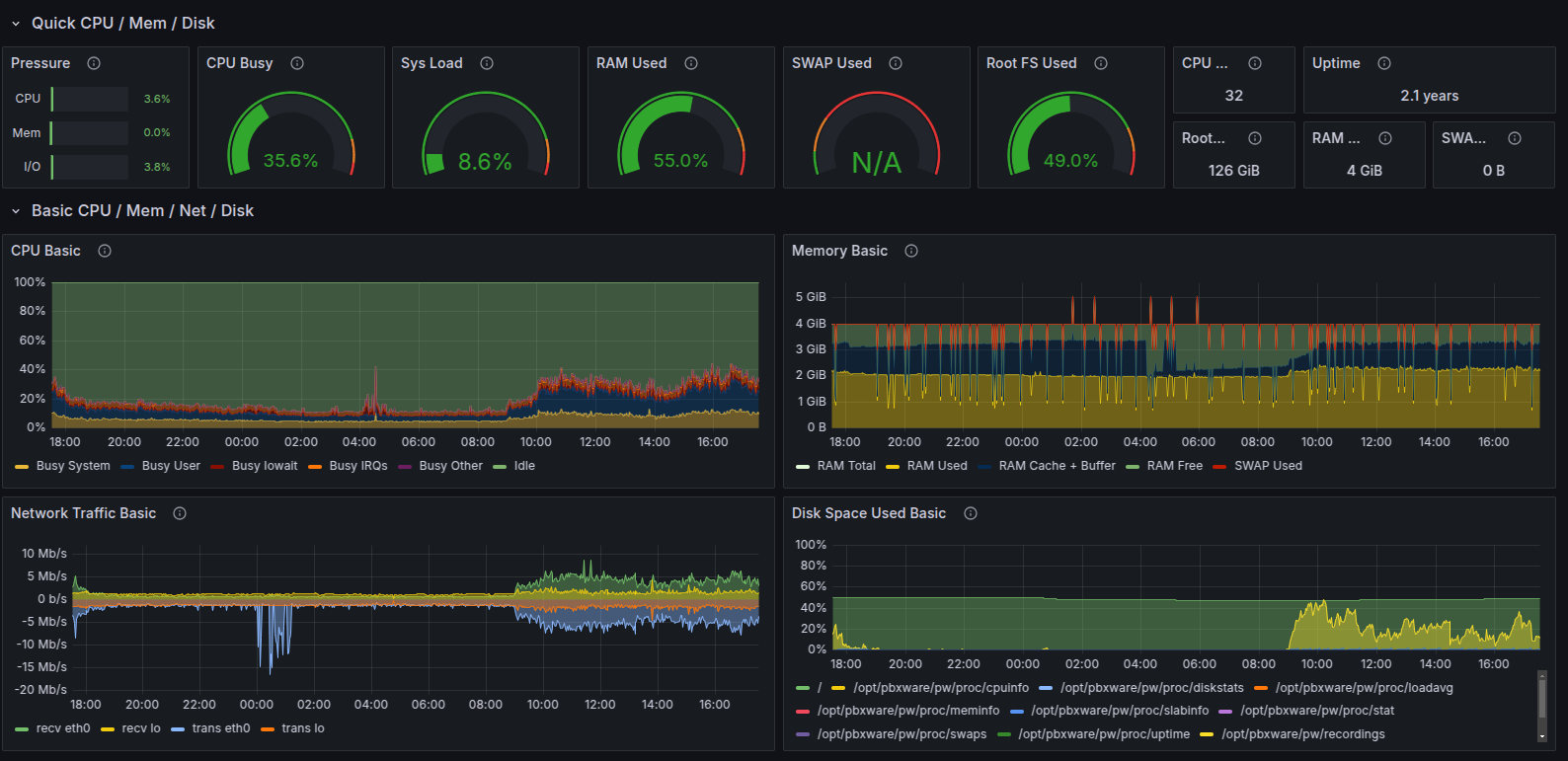
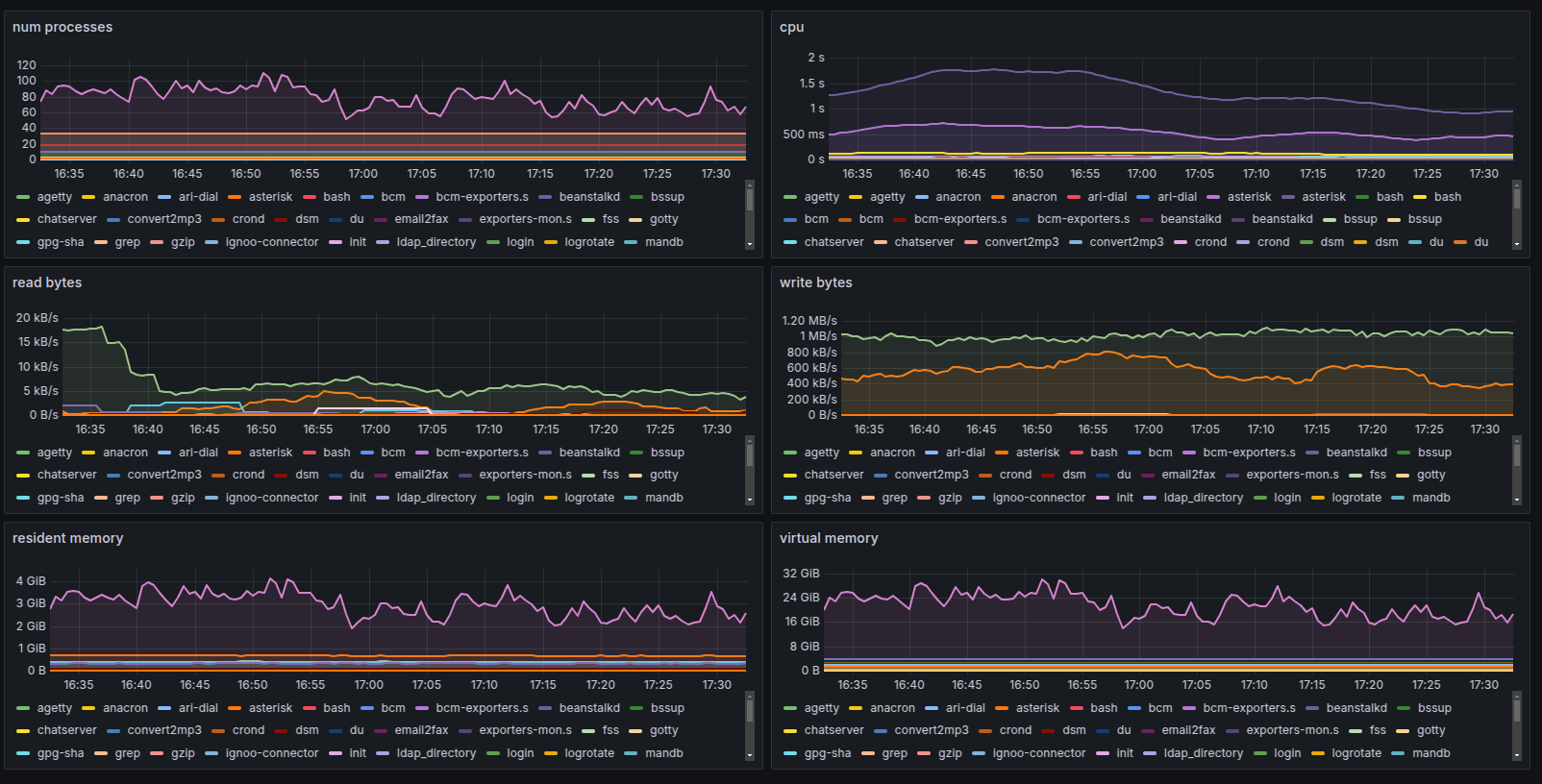
In certain circumstances where customer systems, for example, keep locking up due to CPU/RAM spikes and the logs on the system and/or host do not offer much information, Prometheus + Grafana combination can provide advanced monitoring as shown below:
How it works
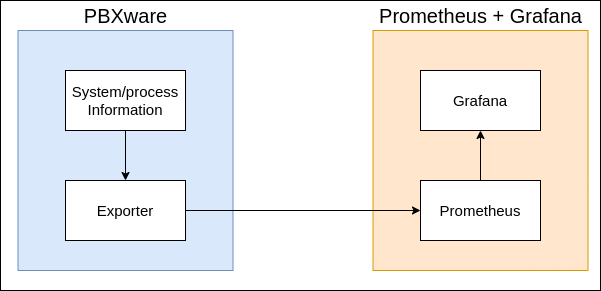
Exporters collect system information and expose it as raw data on specific ports which Prometheus collects in intervals and feeds to Grafana:
How to install Grafana VPS on SERVERware
In order to install the Grafana VPS, please follow the instructions below:
- Access the SERVERware GUI, navigate to Administrator Account Settings, select API Tokens, and generate a token (required for setting up Prometheus).
- Start the VPS creation.
- Select Type ""OCI"".
- Select template ""oci-runner"".
- Choose ""docker"" as the registry from the dropdown menu.
- Type ""grafana/grafana"" in the Image field, and ""latest"" as the tag.
- Follow the standard VPS creation procedure. Recommended Resource Instance flavor: "Medium."
- Once the VPS is running, access Grafana using the VPS IP and port 3000 (e.g., http://10.1.35.69:3000). Default credentials are admin/admin.
- From the left navbar, go to Connections > Add new connection, search for Prometheus and add Prometheus as new connection.
- From the left navigation bar, go to Dashboards, click the Create dashboard button and in the prompt that appears, select Import a dashboard.
- Here, you would import a JSON file from the Observability section in the SERVERware.
- Go back to the Dashboards section from the left navbar and you should now see the SERVERware dashboard listed.
- From the left navbar, go to Connections > Data Sources, click to Add new data source and select Prometheus from the list.
- Here we need to configure Prometheus data source:
- Prometheus server URL: Enter the IP address of the VPS followed by /prometheus. Example: https://10.1.35.69/prometheus
- Authentication: Set to No Authentication
- TLS Settings: Enable Skip TLS certificate validation
- HTTP Header:
a. In the Header field, enter SW-API-TOKEN
b. Paste the previously generated API token as the value