
This guide explains how to enable additional debug logging in the gloCOM/Communicator mobile applications (iOS and Android).
Debug logs are used for troubleshooting issues related to calls, messaging, registrations, audio problems, and other mobile app-related behaviors.
How to Enable Debug Mode
Open the gloCOM application.
Navigate to the Dial Pad.
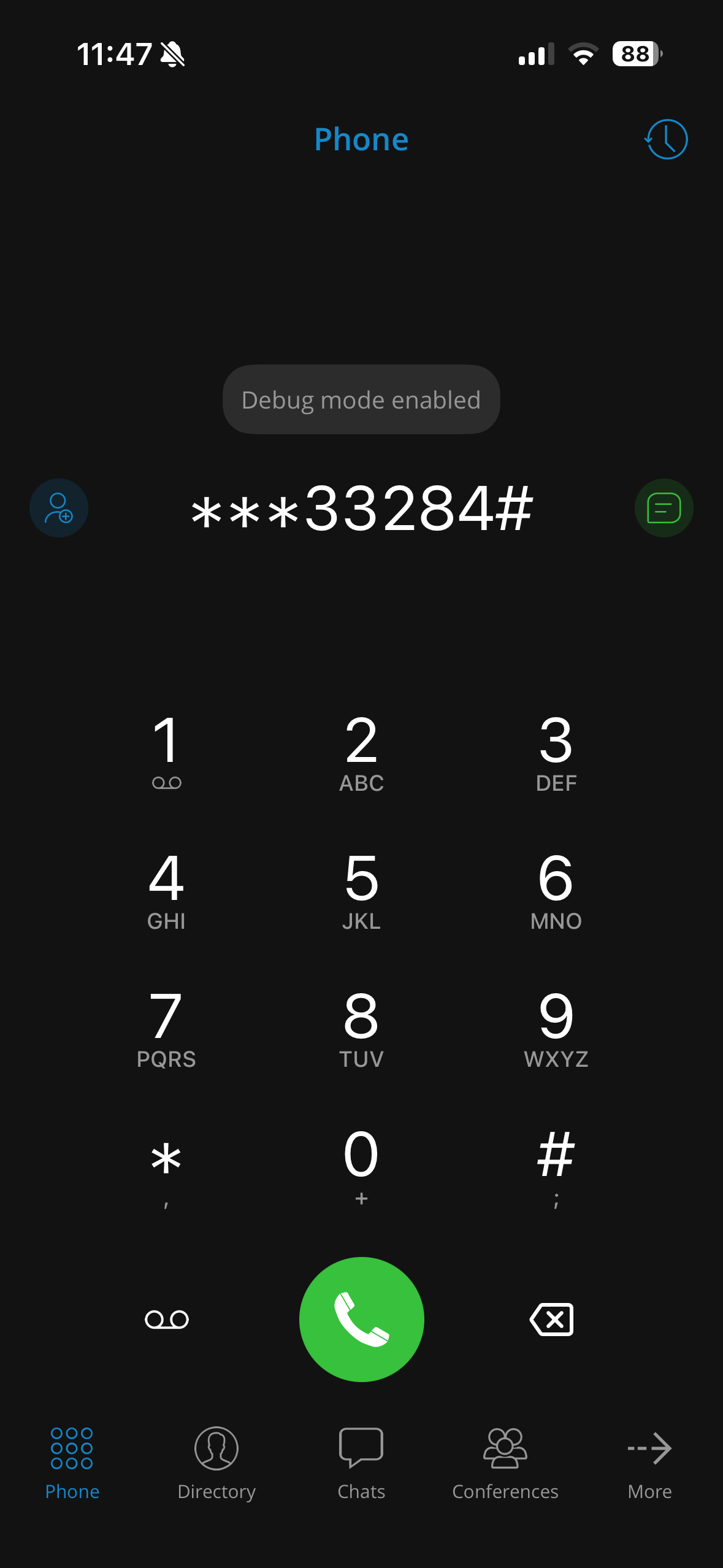
Enter the following code:
***33284#
Once the code is entered:
Debug mode will be enabled automatically
SIP logging will start immediately
Once the debug mode is enabled, there will be a screen confirmation.
How to Export Debug Logs on iOS
In the gloCOM app, go to:
Settings → Debug
Debug screen on iOS: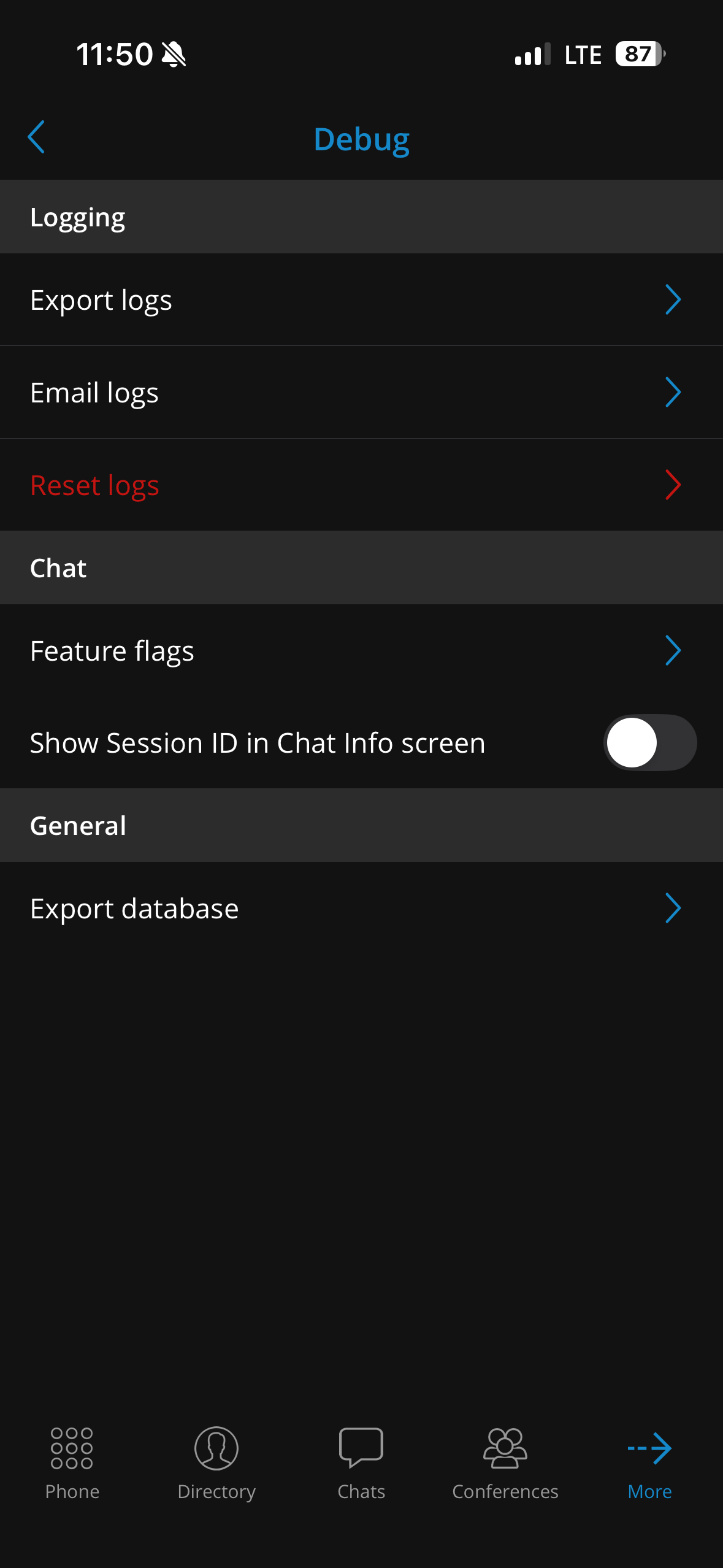
From the Debug screen, you can:
Export the debug logs
Send the logs via email
The logs can then be:
Saved locally (depending on the device/OS)
Sent directly to the Support team for analysis
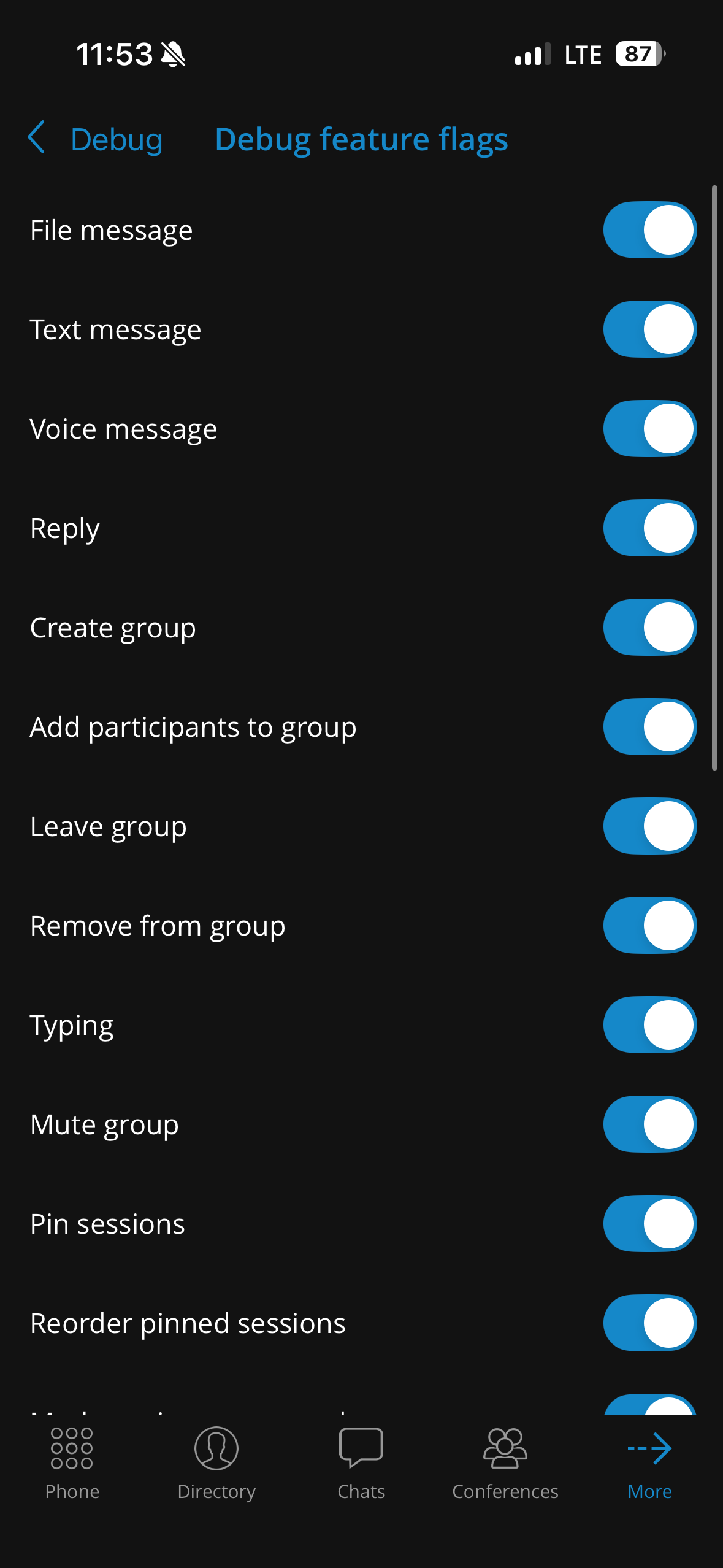
The debug mode also has additional chat feature flags on iOS depending on the debug focus. By default, all flags are selected:
Debug section on Android is called Developer options and it looks like this:
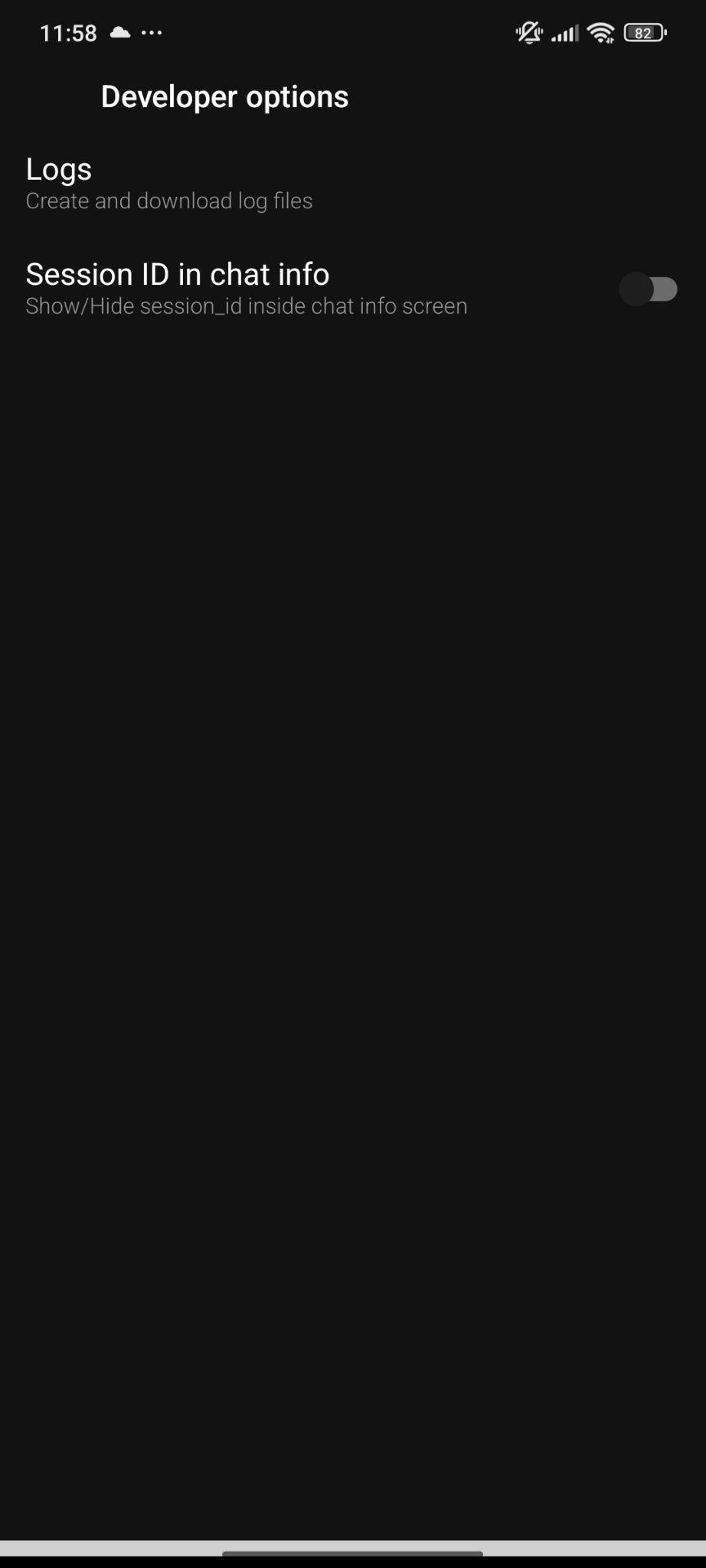
The logs can be created and downloaded here.
To disable debug mode, please dial the same access code ***33284#.