
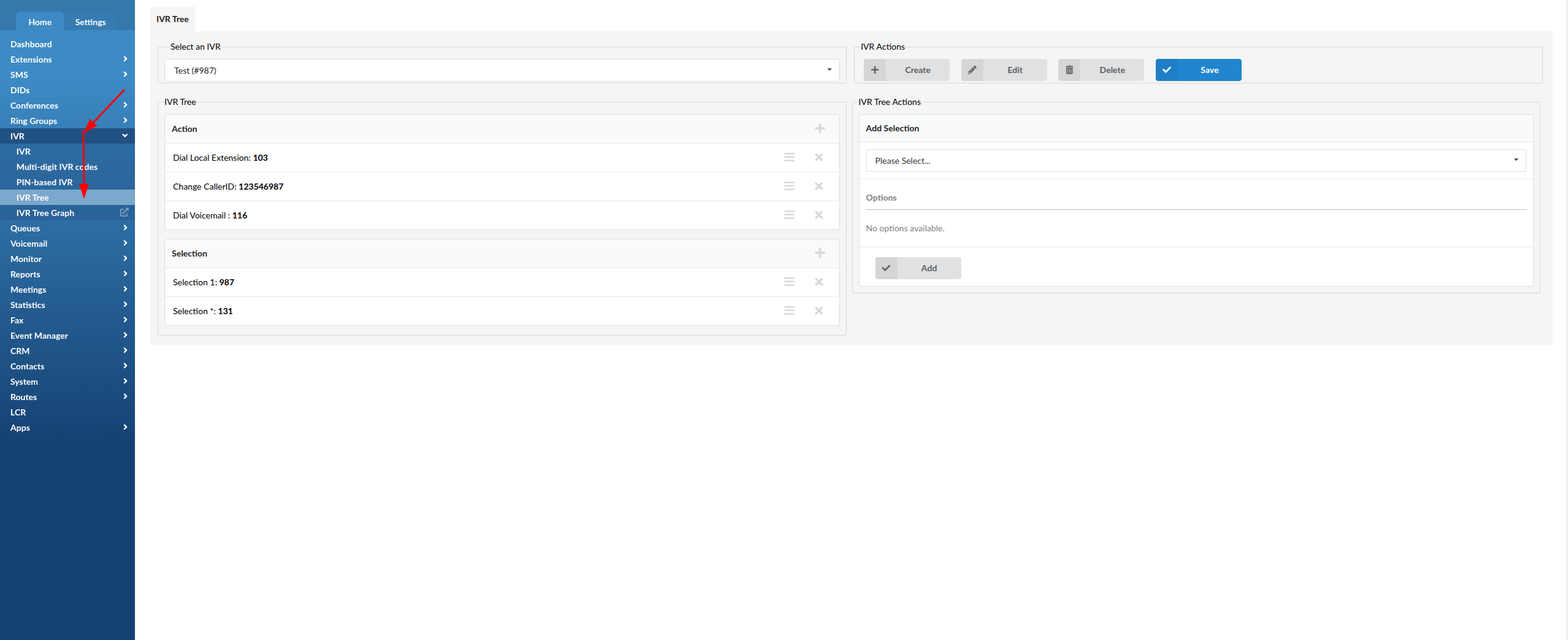
The IVR Tree consists of Action and Selection. Actions are items that are going to be executed when the user enters IVR. Selections can be configured to be executed by pressing the DTMF keys on your phone.
Log in to the PBXware administration.
Navigate to IVR: IVR Tree.
Create the IVR Tree or select the existing one.
Add Action or Selection by clicking the plus icon. (Data can be deleted by clicking the 'Delete' button right next to it.)
Click Save.
IVR Tree Graph
IVR Tree Graph is a special form of IVR whose interface is graphically oriented. This user-friendly interface enables users to have a better understanding of what destinations they have included in their IVR. It also provides an easier preview of the incorporated elements.
Login to the PBXware administration.
Navigate to IVR: IVR Tree Graph, after which you will be able to see the graphical representation of the IVR.
Building Your IVR Tree: Actions & Selections
An IVR Tree is constructed using a series of logical steps that guide a caller through your phone system. In PBXware, every tree is built using two primary components: Actions and Selections.
1. Actions: The "Automatic" Steps
Actions are tasks the system executes automatically as soon as the caller enters the IVR. They are processed in a top-to-bottom sequence.
How to manage them:
Add: Click the Plus (+) icon.
Remove: Click the Delete button next to the item.
Order: The system executes these in the exact order they appear on your list.
Common Action Types:
Play Sound: Plays a greeting or instructions (e.g., "Welcome to our office...").
Start Recording: Begins recording the call immediately upon entry.
Set Language: Changes the system prompts to a specific language.
Wait: Inserts a pause (in seconds) before the next step.
Hangup / Busy Signal: Ends the call or provides a busy tone.
Dial / Check Voicemail: Directly sends the caller to a mailbox or login.
2. Selections
Selections define what happens when a caller presses a key on their telephone keypad. This is where the "tree" branches out.
Available Inputs:
Digits: Options from 0 to 9.
Special Characters: Options for '*'.
Invalid Selection: The fail-safe path if the caller presses a button that isn't on your menu.
Timeout Selection: The path taken if the caller doesn't press any button within a set timeframe.
3. Destination Types
Once a caller makes a Selection, you must choose a Destination Type. This is the final "stop" for that branch of the call.
| Destination | Result |
| Go to IVR Tree | Sends the caller to a different IVR menu (a sub-menu). |
| Local Destination | Connects to a specific internal extension or user. |
| Queue | Places the caller in a line for a department (e.g., Support). |
| Ring Group | Rings multiple phones at once (e.g., the Front Desk team). |
| Voicemail | Sends the caller directly to a mailbox to leave a message. |
| Remote Destination | Forwards the call to an external number or mobile phone. |
Quick Example of a Sequential Flow:
Action: Start Recording (System starts the log).
Action: Play Sound ("Thank you for calling...").
Selection 1: Destination: Queue (Caller presses 1 for Sales).
Selection 2: Destination: Local Extension (Caller presses 2 for the Operator).
Timeout Selection: Destination: Voicemail (If they stay silent, they go to a mailbox).