
This document will be a guideline on tenant creation. It will describe the necessary steps in order to create a tenant on PBXware and some other things.
In order to be able to create a tenant, you will need to have a "Package".
Packages
Packages are "presets" that are used when determining how many of the following, slaves (tenants) can have: extensions, voicemails, queues, IVRs, conferences and ring groups.
To add a package, you need to navigate to the following path:
Master Tenant --> Settings --> Tenants --> Packages
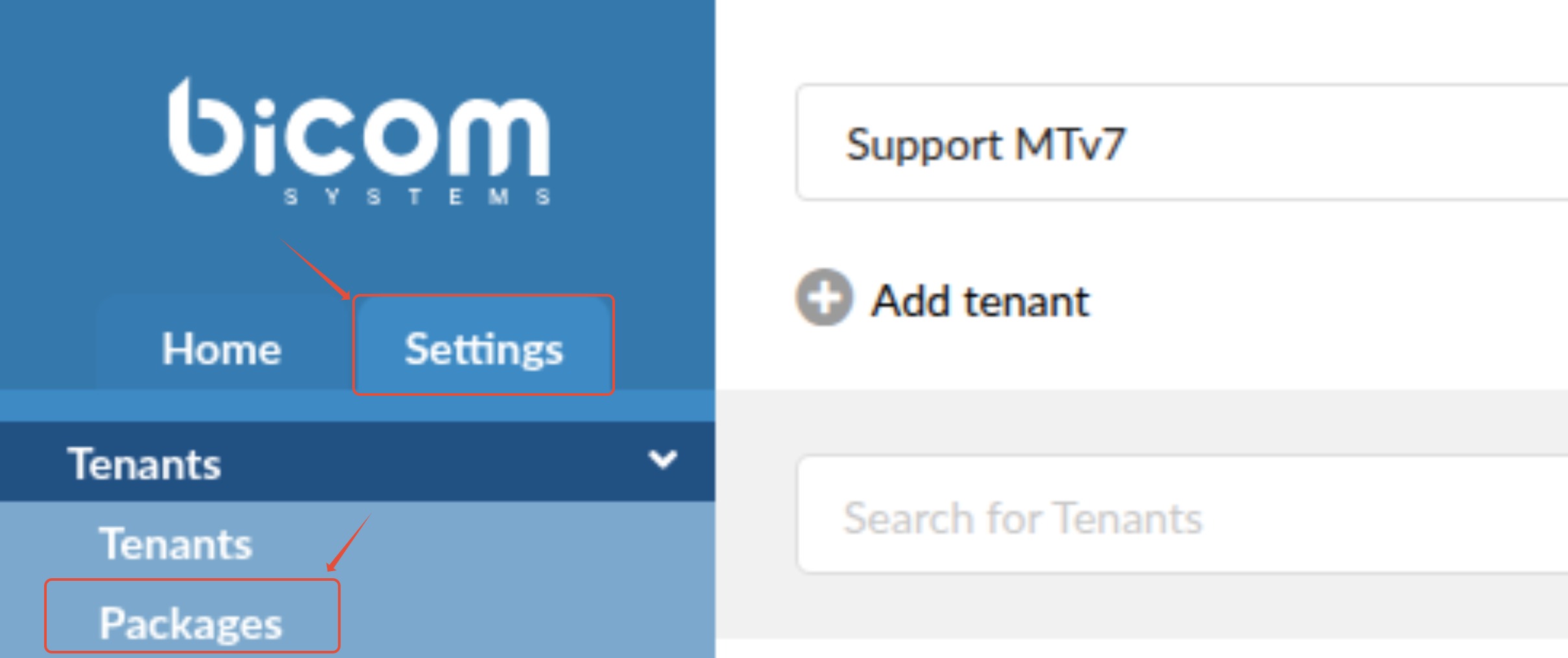
After that, you need to click on the "Add Package" button.
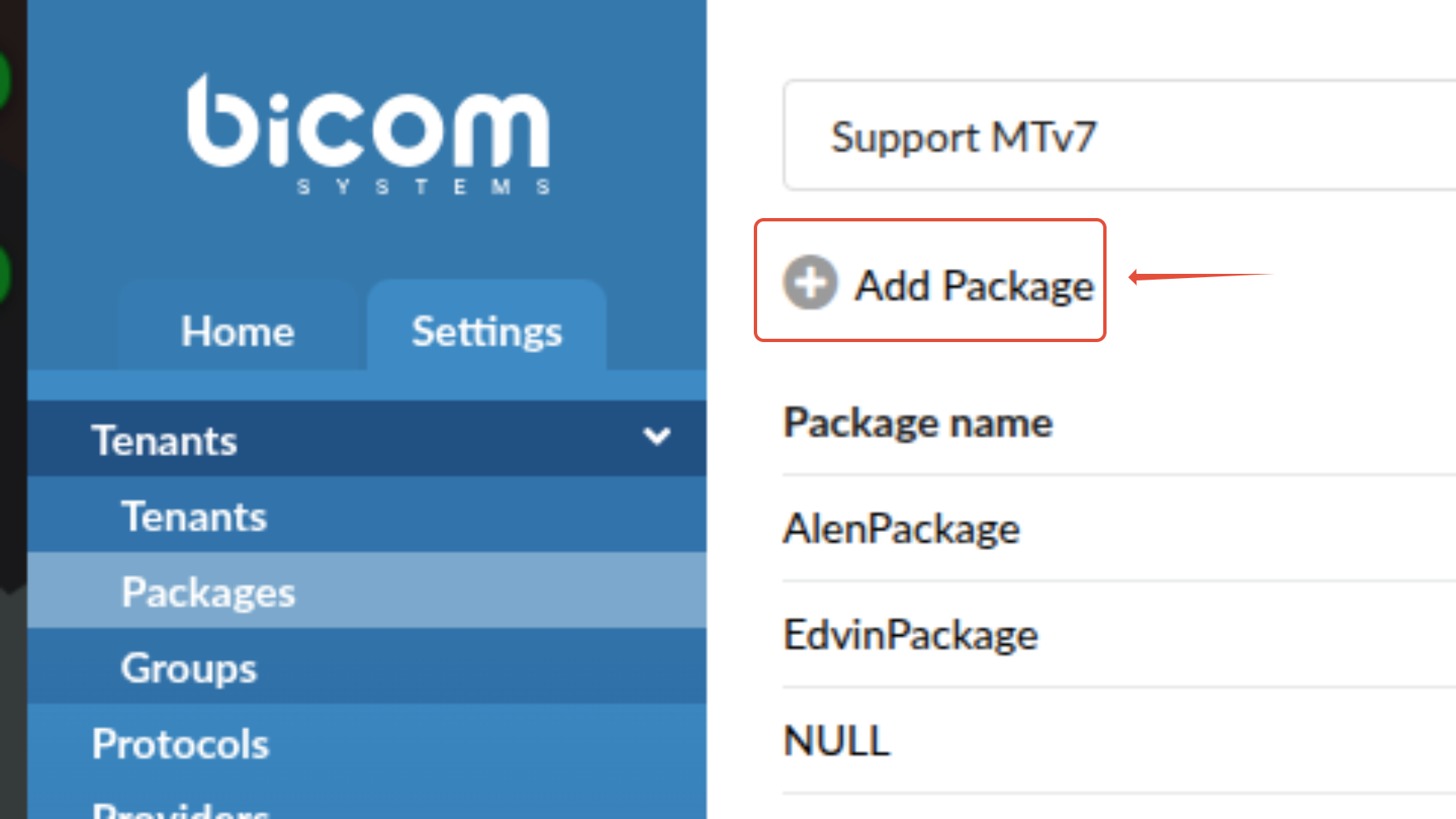
After clicking on the "Add Package" button, you will be prompted with a new screen.
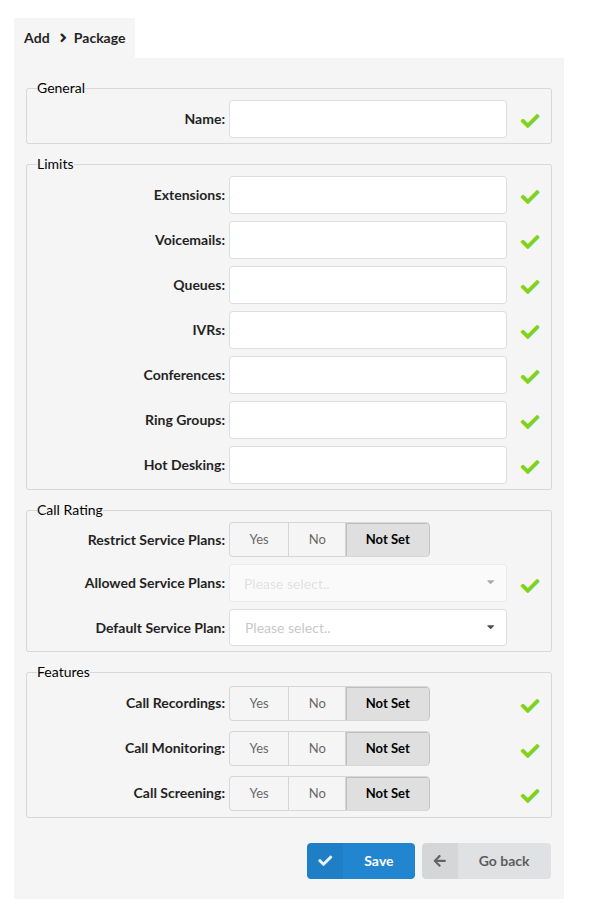
Fields marked with a green check sign are required fields and the values for those need to be defined or set.
- Name - Name of the package (accepts letters and numbers).
- Extensions - The maximum number of extensions that can be created on a tenant when using this package (accepts numbers).
- Voicemails - The maximum number of voicemails that can be created on a tenant using this package. The number of voicemails must be the at least the same as the number of extensions or it can be higher (accepts numbers).
- Queues - The maximum number of queues that can be created on a tenant when using this package (accepts numbers).
- IVRs - The maximum number of IVRs that can be created on a tenant using this package (accepts numbers).
- Conferences - The maximum number of Conferences that can be created on a tenant using this package (accepts numbers).
- Ring Groups - The maximum number of Ring Groups that can be created on a tenant using this package (accepts numbers).
- Hot Desking - The maximum number of Hot Desking devices that can be created on a tenant using this package (accepts numbers).
- Restrict Service Plans - If this option is selected, only 'Allowed Service Plans' will be available within this package. If this option is disabled, all Service Plans that are created are available for that Tenant.
- Allowed Service Plans - Allowed service plans that can be used with this package (Only if Restrict service plans option is set to "YES").
- Default Service Plan - Select the default service plan to be used on the tenant(s) using this Tenant package.
- Call Recordings - Choose to enable or disable Call Recordings on tenant using this package. If you disable it, you will not be able to record call on extension's level and DID.
- Call Monitoring - Enabling or disabling this option will allow or disallow using the Call Monitoring option in Enhanced Services for all extensions.
- Call Screening - If you enable this option, the Call Screening option under Enhanced Services will be listed.
When you fill out the values for the Package creation, it should look something like this:
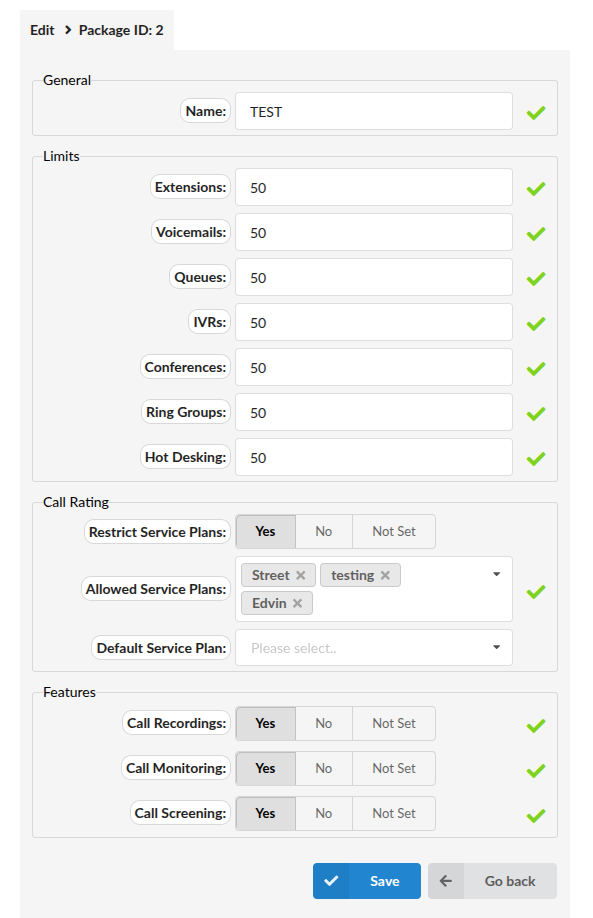
Once the Package is created, it can be used for creating a Tenant.
Tenants
In order to create a Tenant, you will need to navigate to the following path:
Master Tenant --> Settings --> Tenants -->Tenants
After that, you will need to click on the "Add tenant" button.
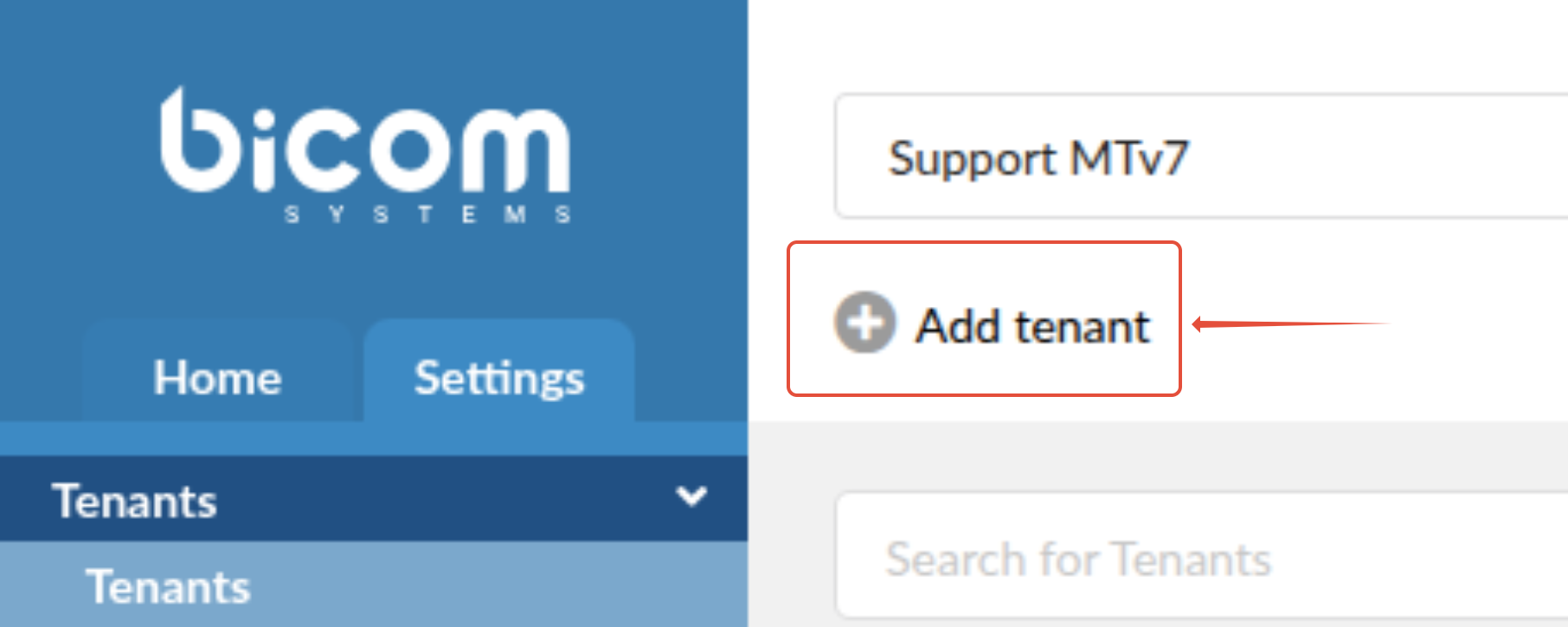
After clicking on the "Add tenant" button, you will be prompted with a new screen.
Fields marked with a green check sign are required fields and the values for those need to be defined or set.
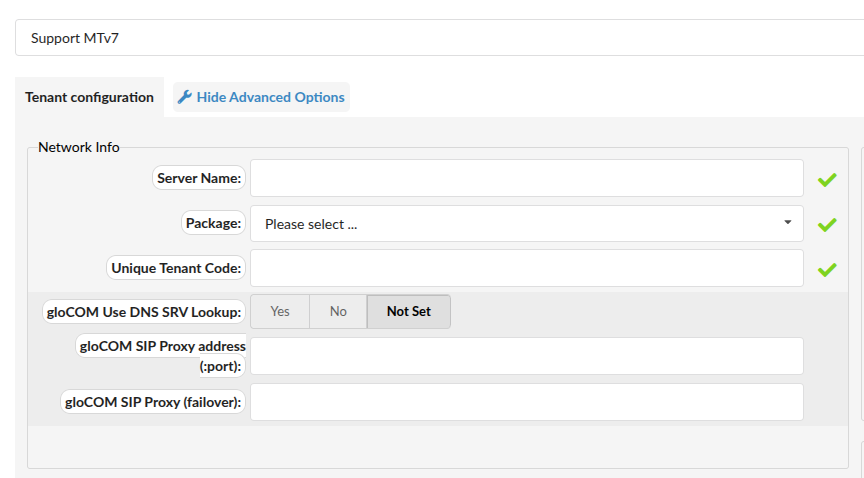
- Server Name - Custom server name.
- Package - Select which package will the tenant use from dropdown menu.
- Unique Tenant Code - The unique code assigned to the tenant. When a device registers to an extension on Multi-Tenant PBXware, the username will consist of TENANT_CODE + EXTENSION_NUMBER. (i.e., Username for extension 100 on tenant 200 will be 200100).
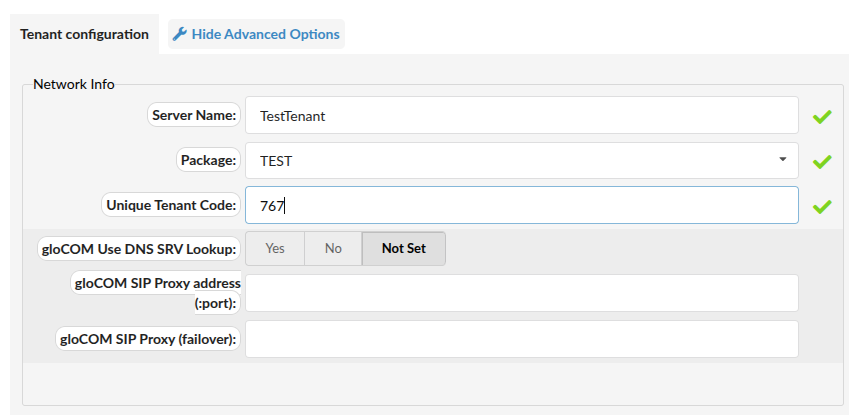
In this case, we have set the name and the tenant code, and have selected package "TEST" from the dropdown menu.
There are other fields marked with a green check sign that need to be filled out.
Under the submenu "Locality", the following fields need to be filled out:
- Country - Country in which the PBXware system is located. Example: If PBXware is located in the USA, set USA here.
- National dialing code - National dialing code used to initialise calls in the same country. Example: In the United States and other countries in NANP, national dialing code is 1, while in the United Kingdom, Germany and most other countries it is 0.
- International dialing code - International dialing code, used to initiate international calls. For USA and countries in NANP - 011, For United Kingdom, Germany, and most other countries - 00
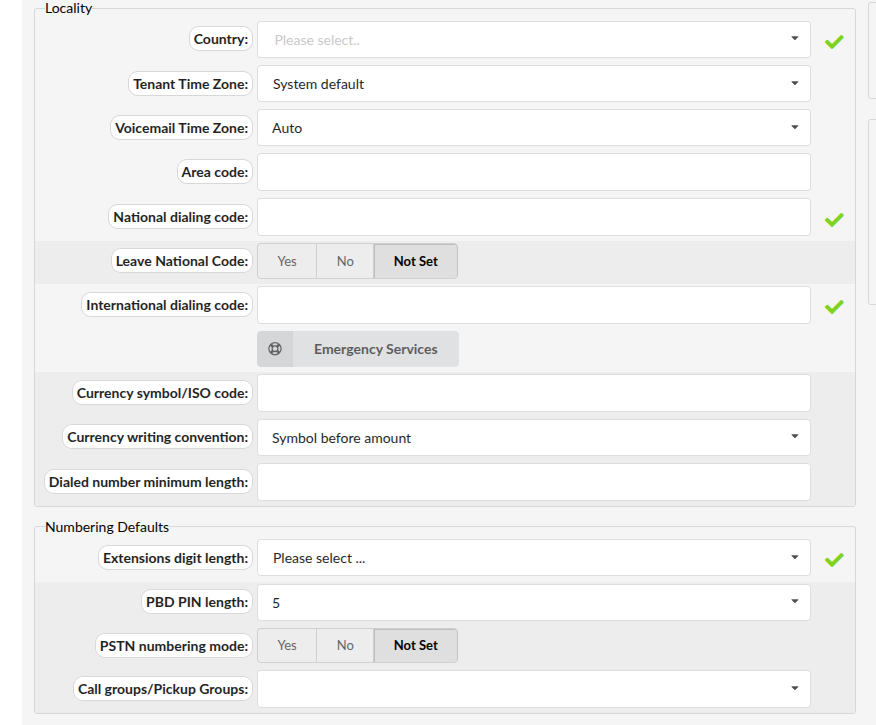
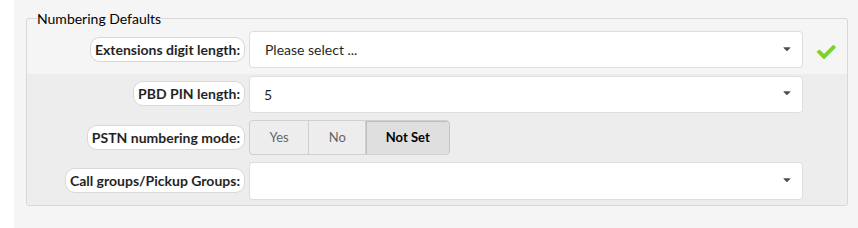
Under the submenu "Numbering Defaults", the following field needs to be filled out:
- Extensions digit length - A number of digits used by the system to create local extensions, IVRs, Queues, Voicemail boxes, Conferences, etc. This option is available for settings only during the setup wizard install process. To change the number of digits later, you must remove all the PBXware elements (Extensions, Ring Groups, Conferences, IVRs, and Voicemail boxes) you previously created. The best way to determine the number of digits you should use would be to take the number of extensions you need at the moment and calculate for eventual expansions in the future while also considering the number of Ring Groups, Conferences, IVRs, etc. to prevent having to change the digit length in the future. The recommended value for this field is 4.
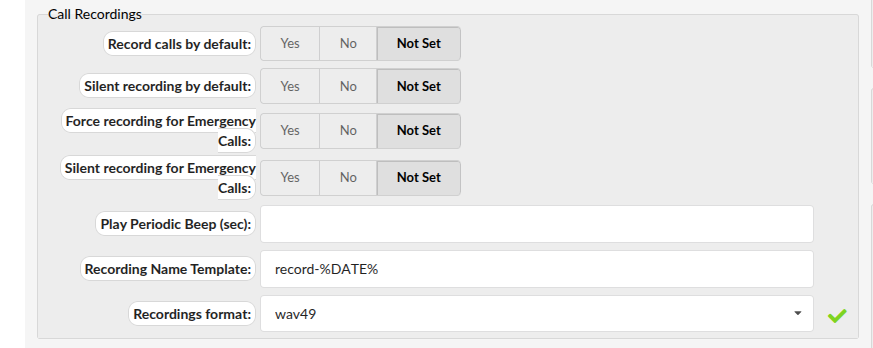
Under the submenu "Call Recordings", the following field needs to be filled out:
- Recordings format - The file format used for saving the call recordings and voicemail messages. Availabe formats: gsm, wav, wav49, G729 native -> GSM or ogg. If wav is selected, all call recordings and voicemail messages will be saved in wav format.
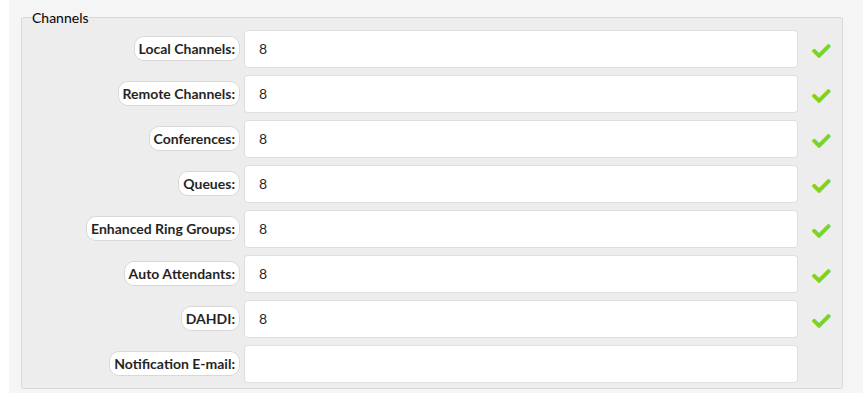
Under the submenu "Channels", the following fields need to be filled out:
- Local Channels - Total number of all channels used by local UADs. Example: If there is a call coming through the trunk to a Ring Group that has 10 members, there will be 1 remote and 10 local channels used.
- Remote Channels- This defines a maximum number of simultaneous, inbound, and/or outbound calls that can be made through the trunks on the server/tenant.
- Conferences - The maximum number of conferences that can be created on the system/tenant.
- Queues The maximum number of all queues available on the system.
- Enhanced Ring Groups - The maximum number of all ERGs available on the system.
- Auto Attendants - The maximum number of IVRs available on the system.
- DAHDI - Total number of all trunks using DAHDI protocol.
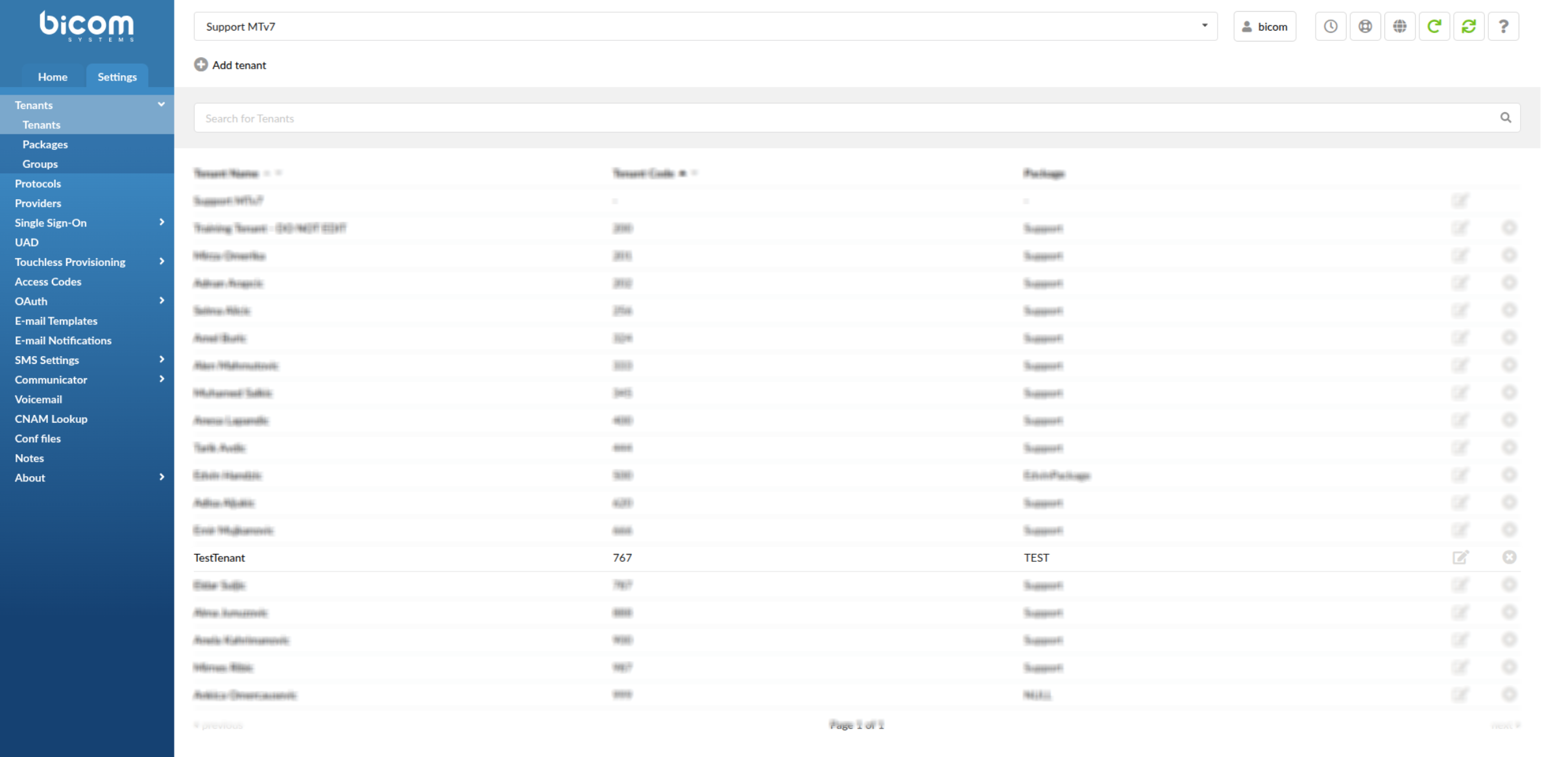
After the tenant is created, you should be able to see it in the tenant list by navigating to the path:
Master Tenant --> Settings --> Tenants -->Tenants
To assign a trunk to the tenant, you should navigate to the path:
Master Tenant --> Home --> Trunks -->Trunks & Tenants
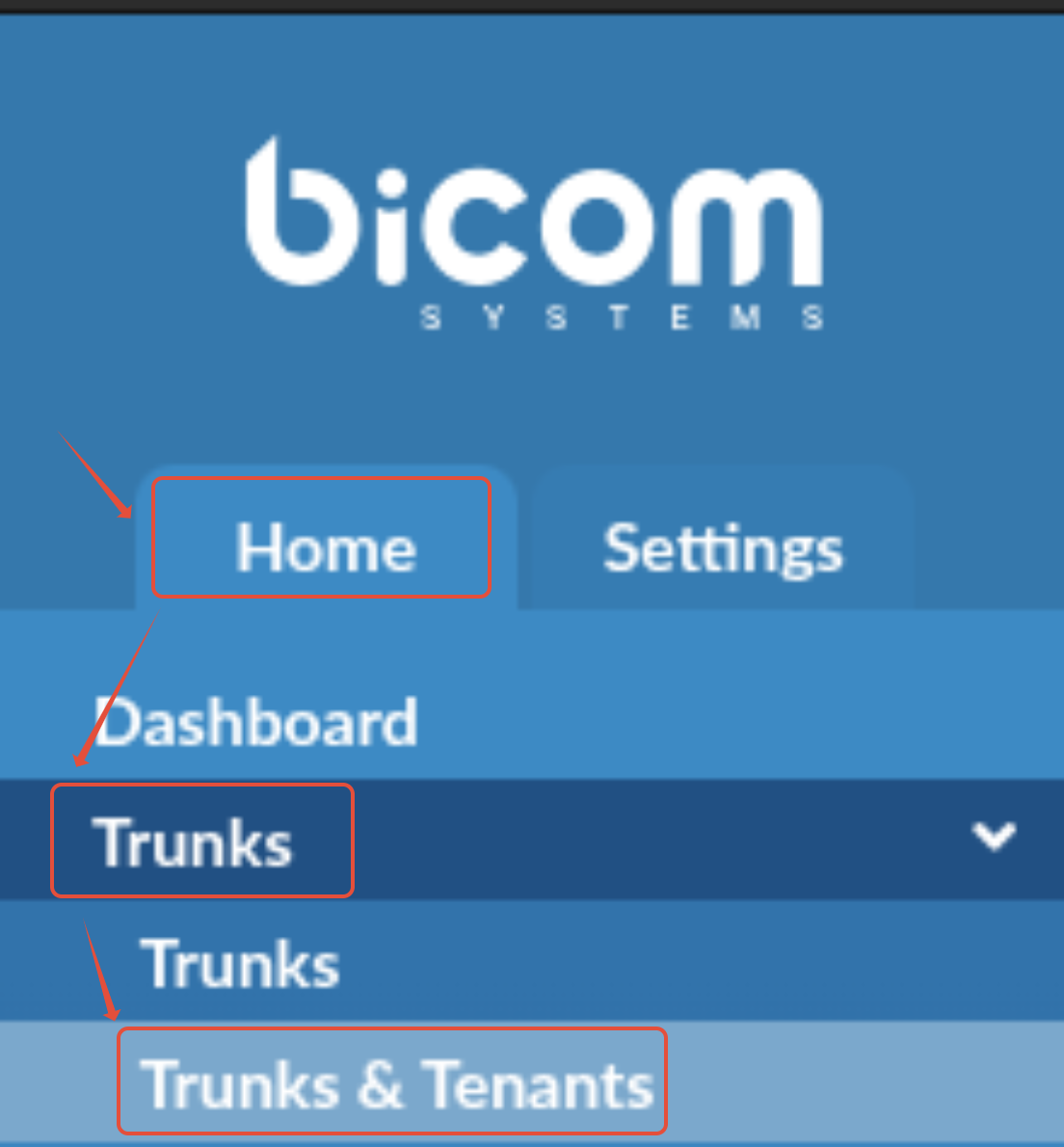
After that, click on the "Edit" button on the right-hand side to edit the tenant.

After clicking on the "Edit" button, you will be prompted with a new screen:
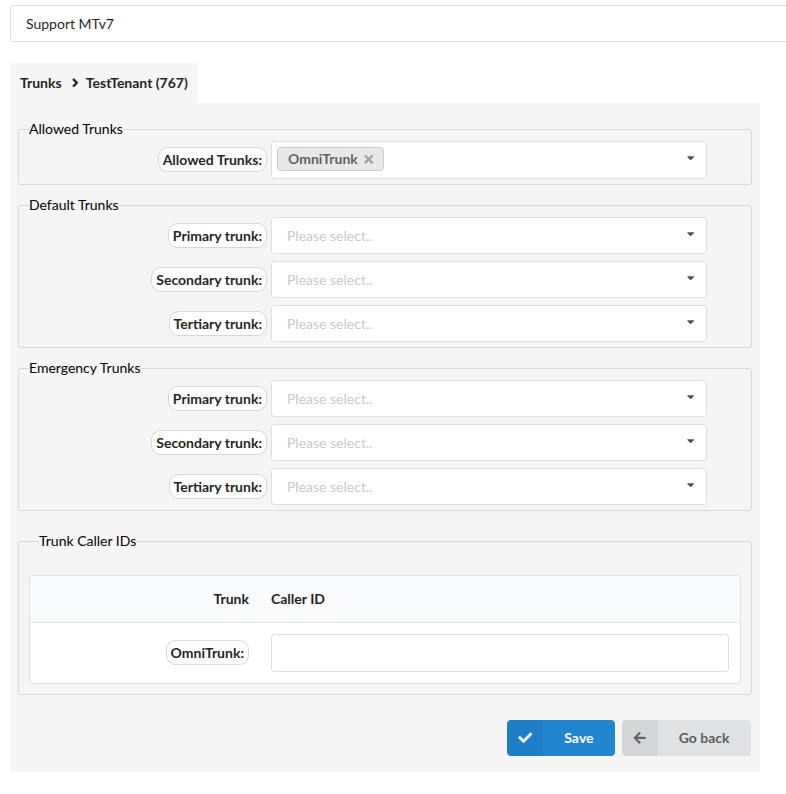
- Allowed Trunks - Choose which of the available trunks will be used for incoming/outgoing calls on this Tenant. Only Trunks chosen here will be available in the fields below. After you choose the trunks in the "Allowed Trunks" option, they will be available for selection in the fields below.
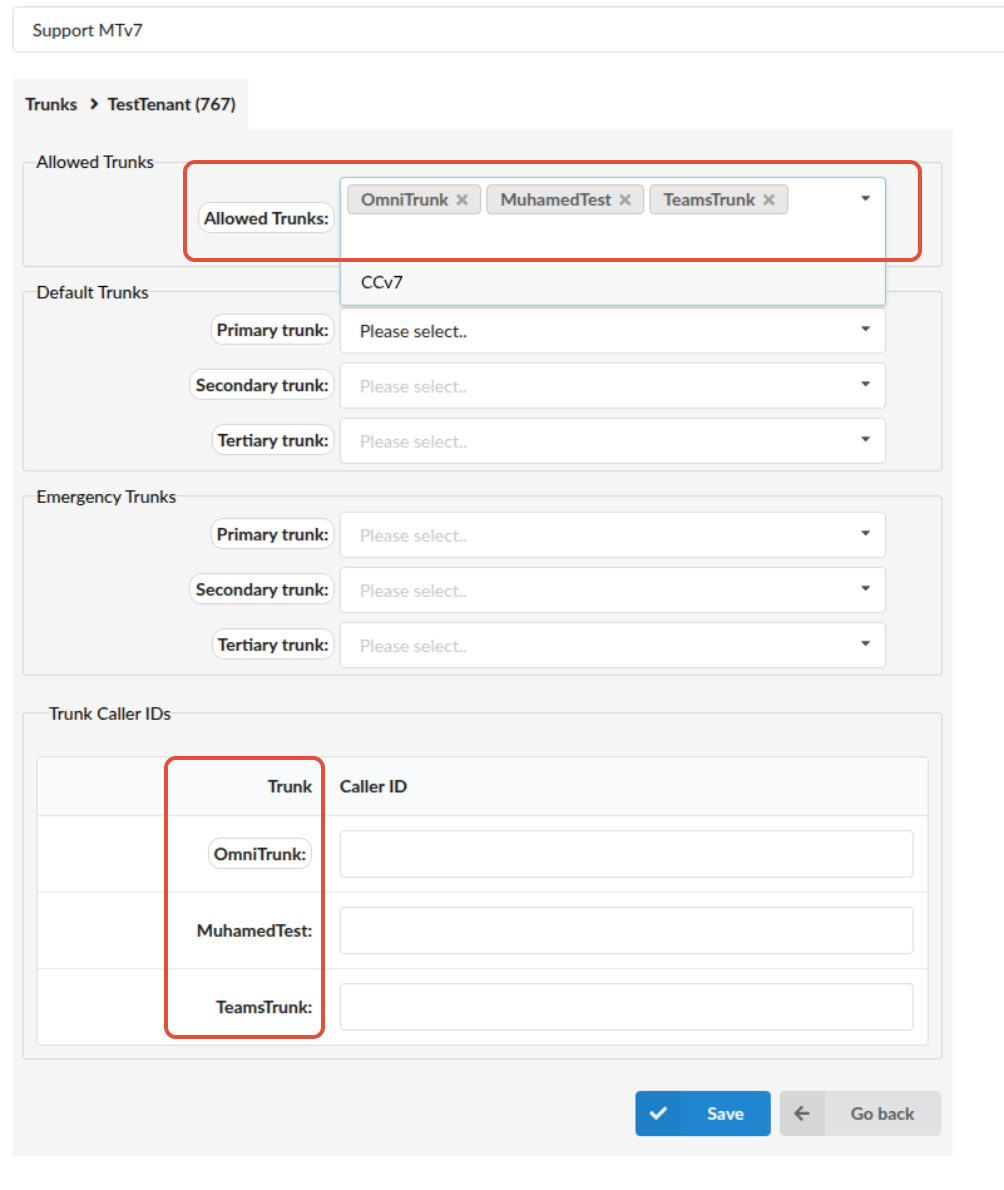
Under "Default Trunks" and "Emergency Trunks" submenus, you can set the priority order of the trunks you have selected.
- Primary trunk - Defines the primary trunk. When multiple trunks are available, calls will be directed through the trunk that is set as "Primary trunk" first.
- Secondary trunk - Defines the secondary trunk. When a primary trunk fails or becomes unavailable, the PBXware will automatically route the calls to the secondary trunk, ensuring outbound calls are uninterrupted.
- Tertiary trunk - Defines the tertiary trunk. The Tertiary trunk option allows you to configure a third backup trunk in case your primary and secondary trunks are unavailable or congested.
Under "Trunk Caller IDs" submenu, you can set the Caller ID that will be shown when making an outbound call through particular trunk.
After you are done with assigning trunks to the tenant and setting the default trunks order, you should be able to see the changes you have made by navigating to the path:
Master Tenant --> Home --> Trunks -->Trunks & Tenants

In the same way we used to assign Trunks to the tenant, we can add SMS trunks to the tenant.
In order to do that, we need to navigate to the path:
Master Tenant --> Home --> SMS -->Trunks & Tenants
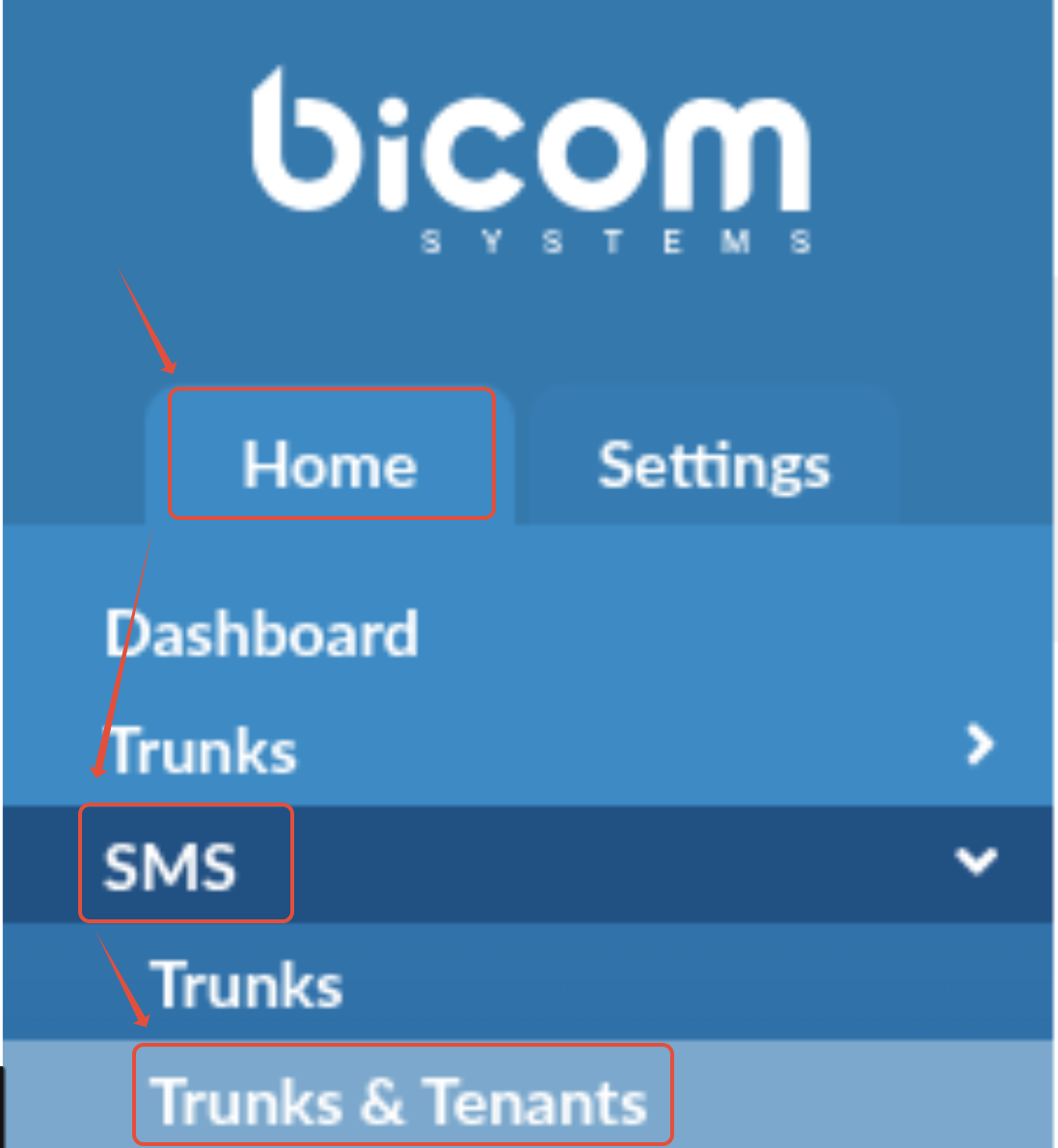
After that, we need to click on the "Edit" button on the right-hand side.

After clicking on the "Edit" button, we will be prompted with a new screen.
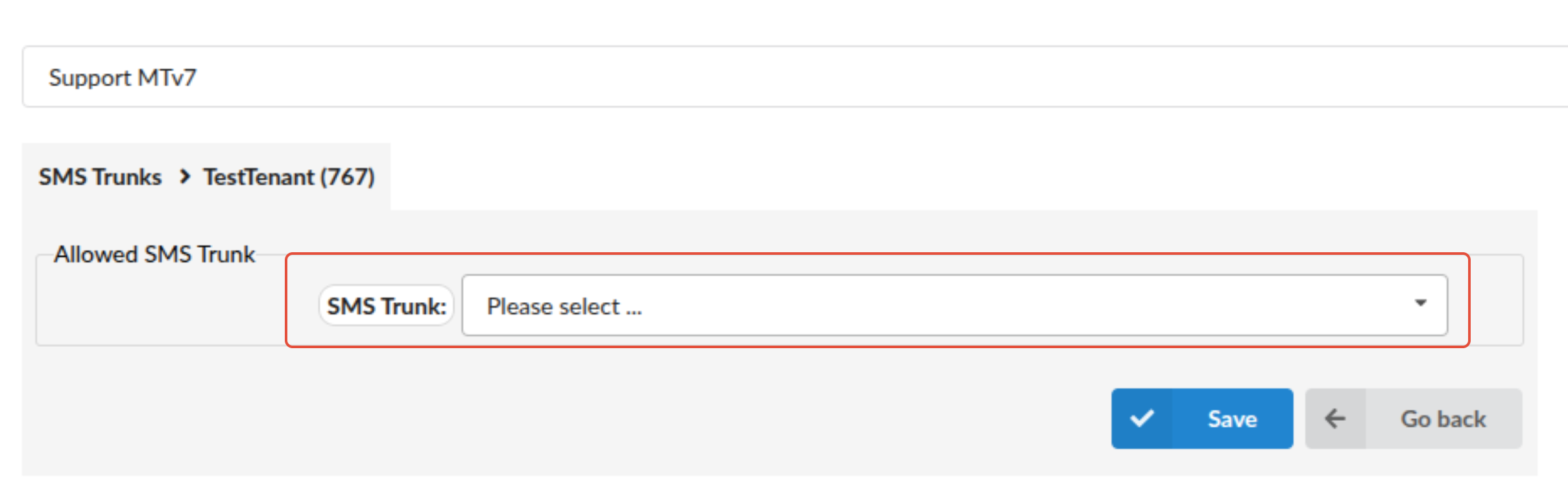
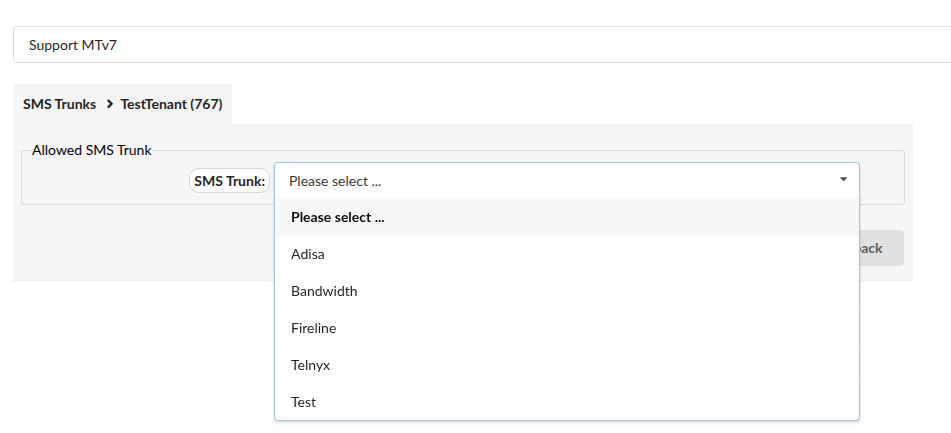
You will have the option to select a SMS trunk from the dropdown menu. Only SMS trunks that are already configured on the system will be available for selection.
DIDs
Next thing you would need to do is to create DID numbers.
In order to do that, you need to navigate to the path:
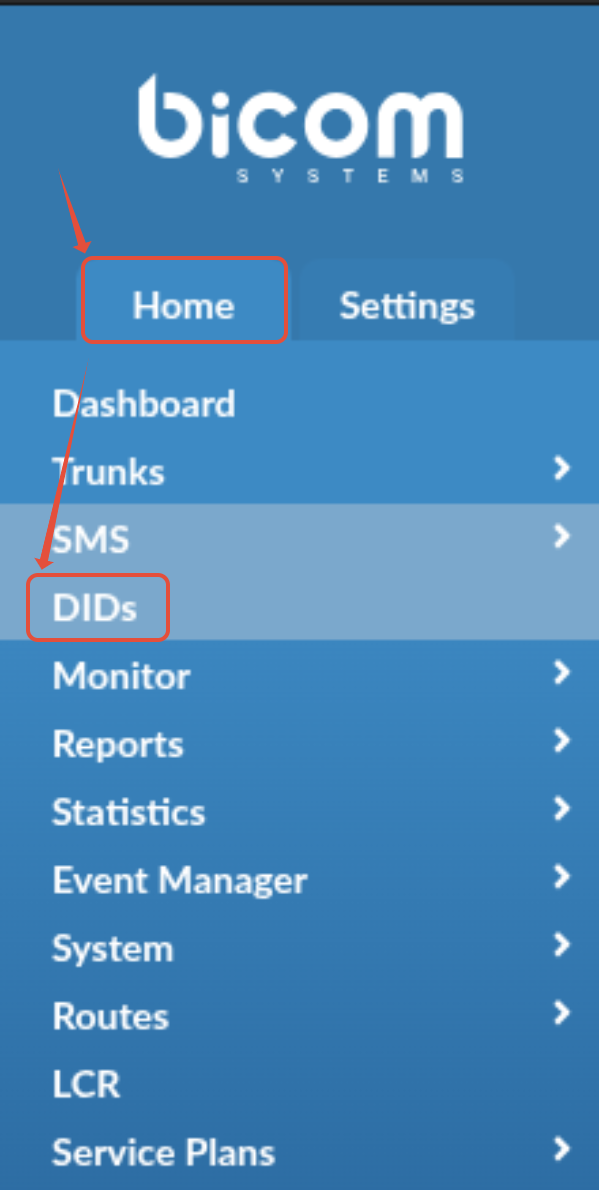
Master Tenant --> Home --> DIDs
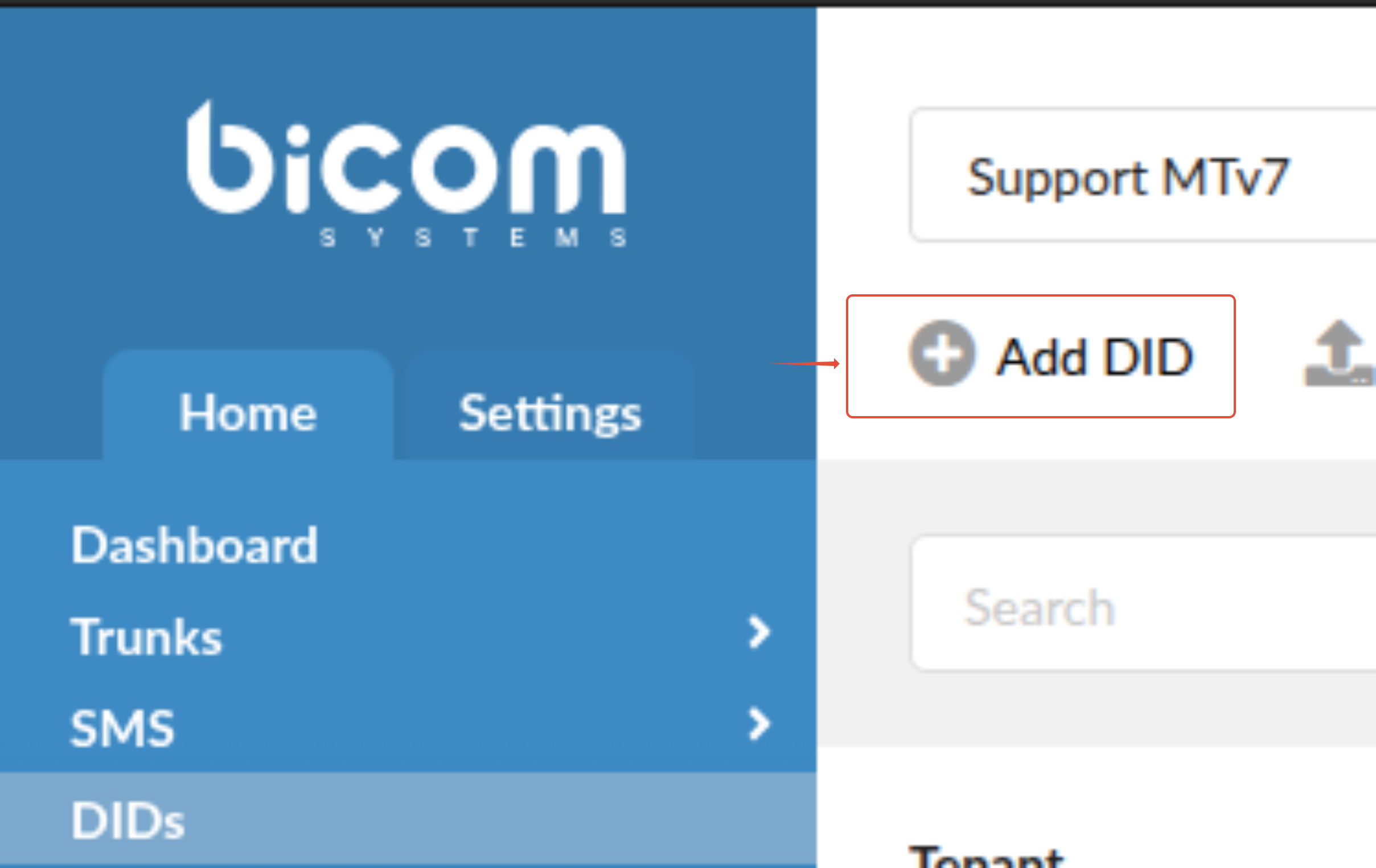
After that, you need to add a new DID number, by clicking on the "Add DID" button.
After clicking on the "Add DID" button, you will be prompted with a new screen.
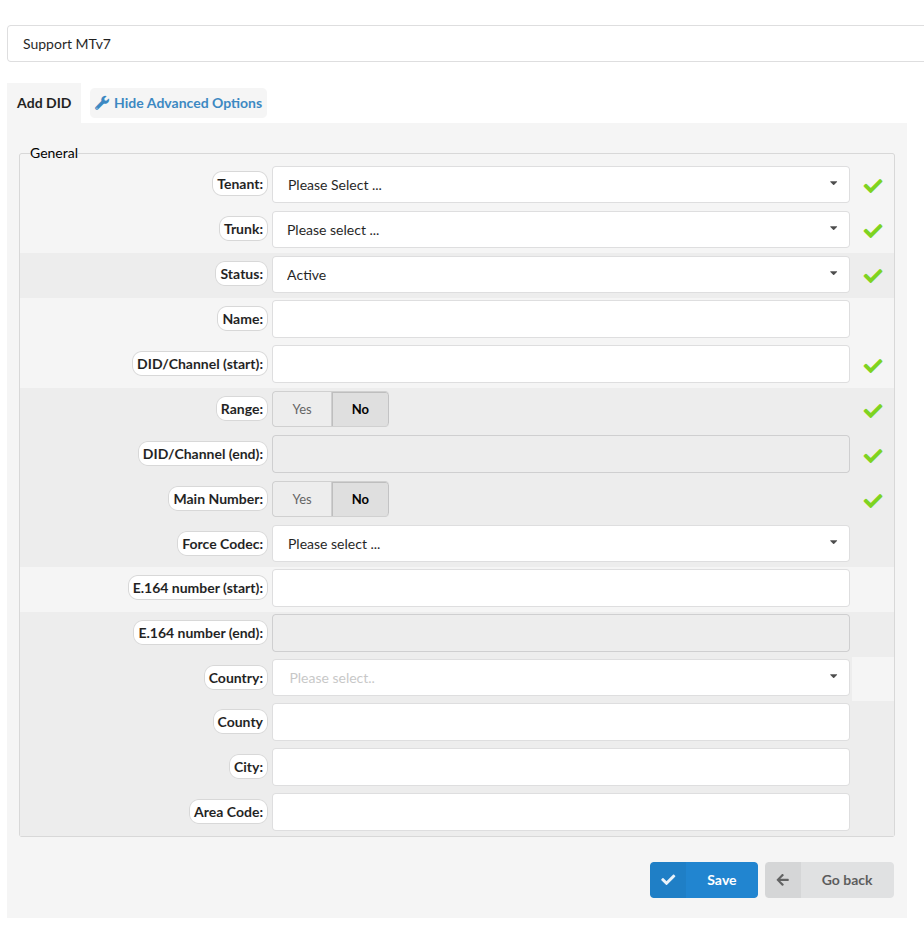
Fields marked with a green check sign are required fields and the values for those need to be defined or set.
- Tenant - Select which tenant is using a DID. Example: TestTenant 767
- Trunk - Trunk used by the DID. This is only for informational purposes, inbound routing can not be controlled on the PBXware side, and when the call comes in via a provider that has multiple trunks on PBXware, it does not mean that it will be routed via the assigned trunk.
- Status - Refers both to the status of DID and SMS service. Active - Calls and SMS messages both go through. Inactive - Calls do not go through, but SMS messages still go through.
- DID/Channel (start) - Enter your DID number. In case you are creating a DID range, you will enter the first number in the range here.
- Range - If enabled, users may utilize a range of DIDs and point them to one or many Endpoints. Users may then enter their desired DID/Channel (start) and DID/Channel (end) and/or E.164 number (start) and E.164 number (end) which allows them to limit the beginning of the Range and its end.
- DID/Channel (end) - In case you are creating a DID range, you will enter the last number in the range here.
- Main number - This option allows you to indicate that the DID number is assigned as the main number and mark it in green on the DID page for easier navigation. If more than one DID is configured as a “Main Number” these DIDs will be displayed at the top of the DID list and sorted by number in descending order. By default, the “Main Number” option is set to No. Once the 'Main Number' is set to 'Yes' and changes are saved, the DID list will display the number marked in green color. In case there are multiple 'Main Numbers', DIDs will automatically be displayed on the top of the DIDs list, and sorted numerically.
Once you fill out the values for the DID creation, it should look something like this:
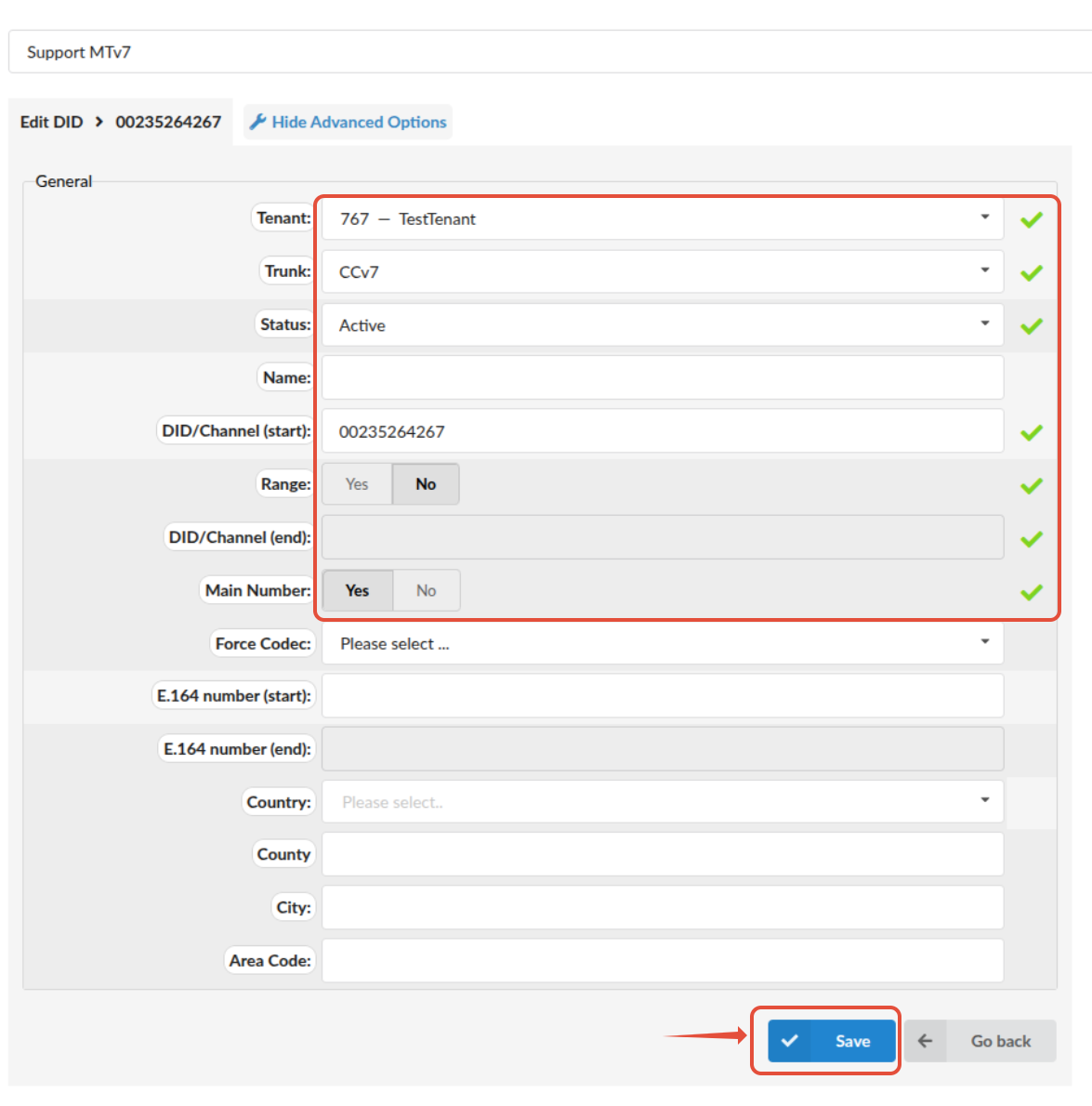
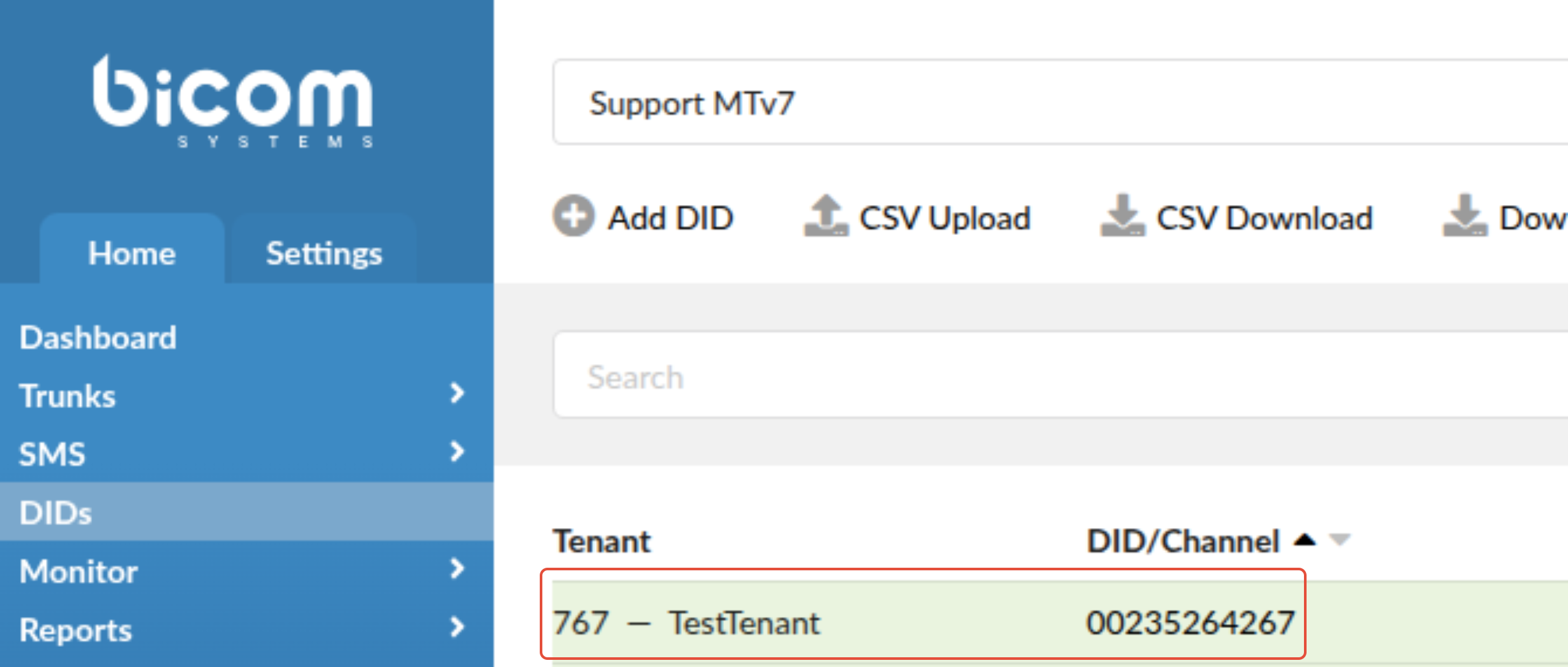
You click on the "Save" button and the DID should be saved. The screen will return to a previous preview and you will be able to see the DID you have created.
Now, if you click on the dropdown menu of the tenant selection, you should be able to see it.
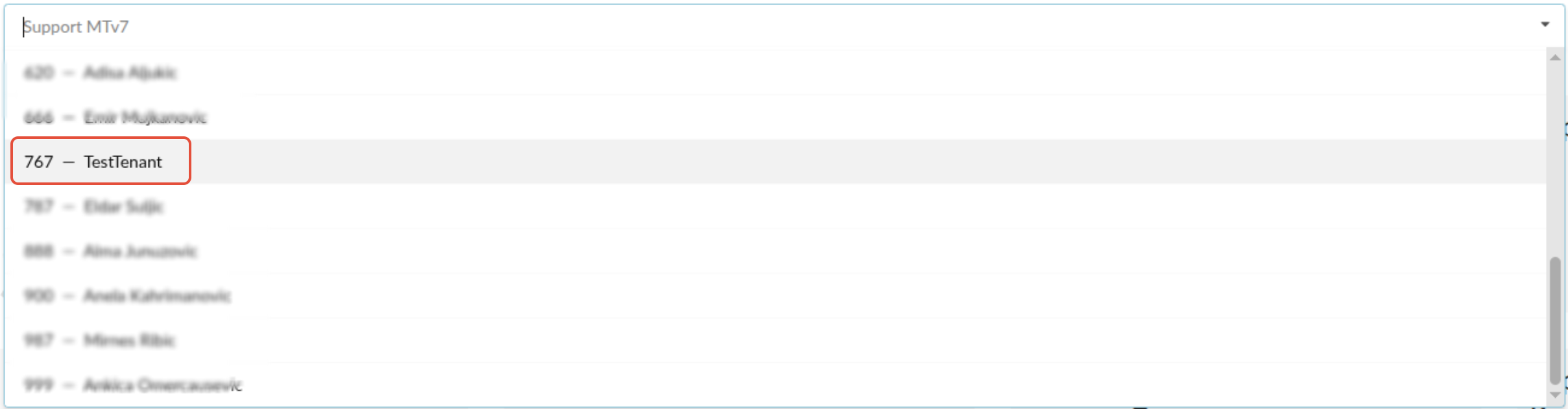
If you select the tenant in question, you will be prompted with a new screen of that tenants dashboard.
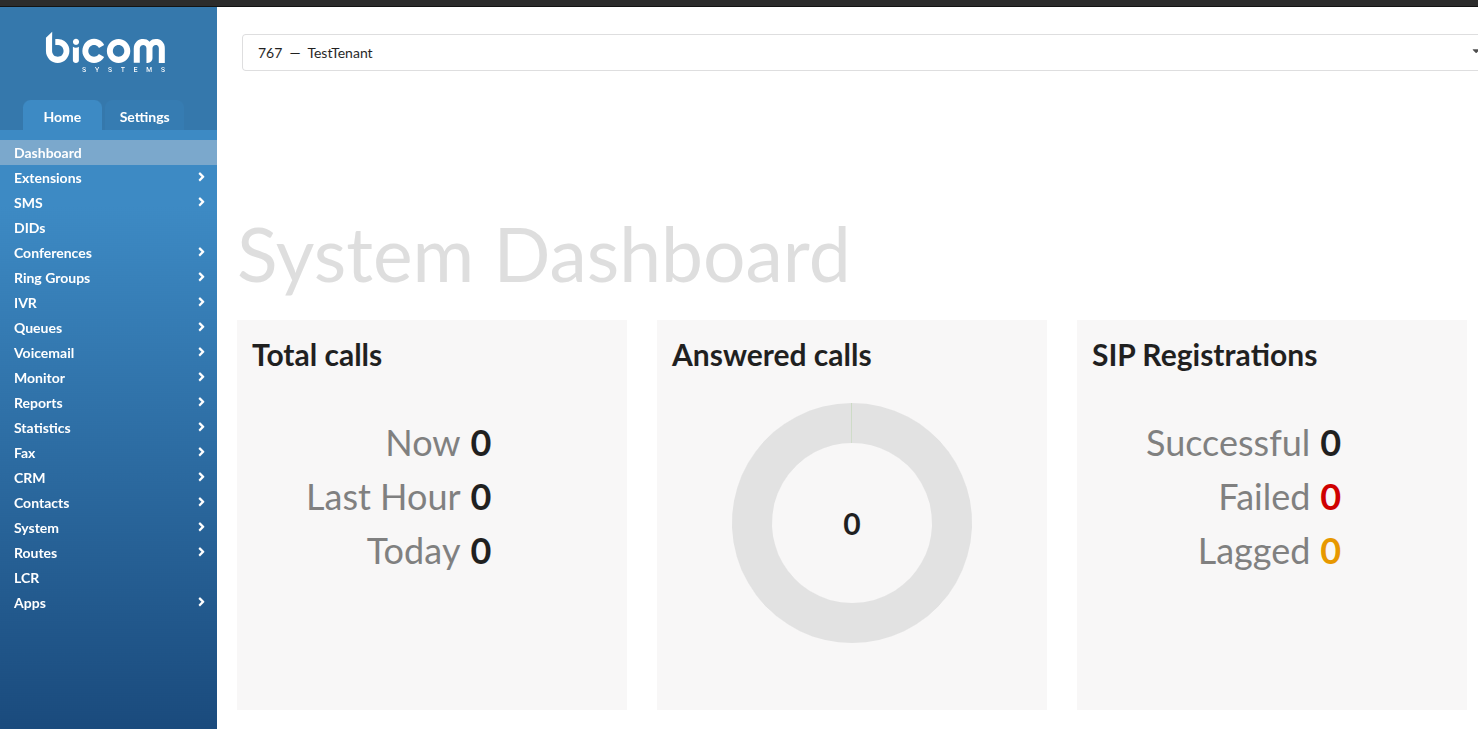
If you scroll down a little bit, you will see the section that is presenting the limits of the tenant in the terms of number of extensions, IVRs, Queues and Conferences.
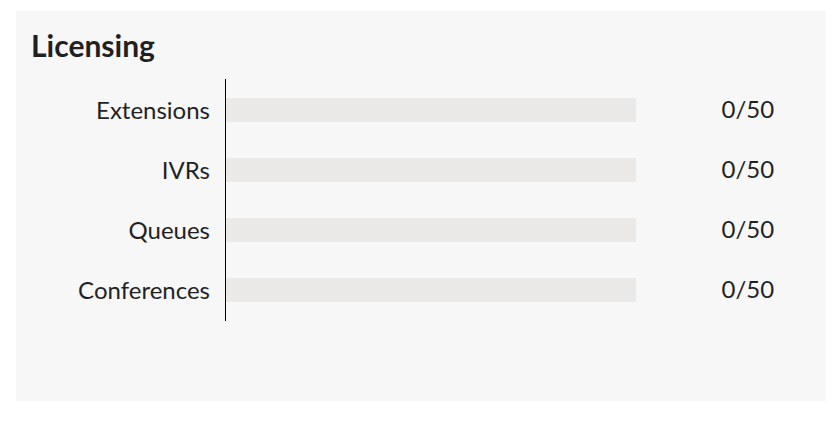
The values for limits are the values that are set when we have created the package.
Access Codes
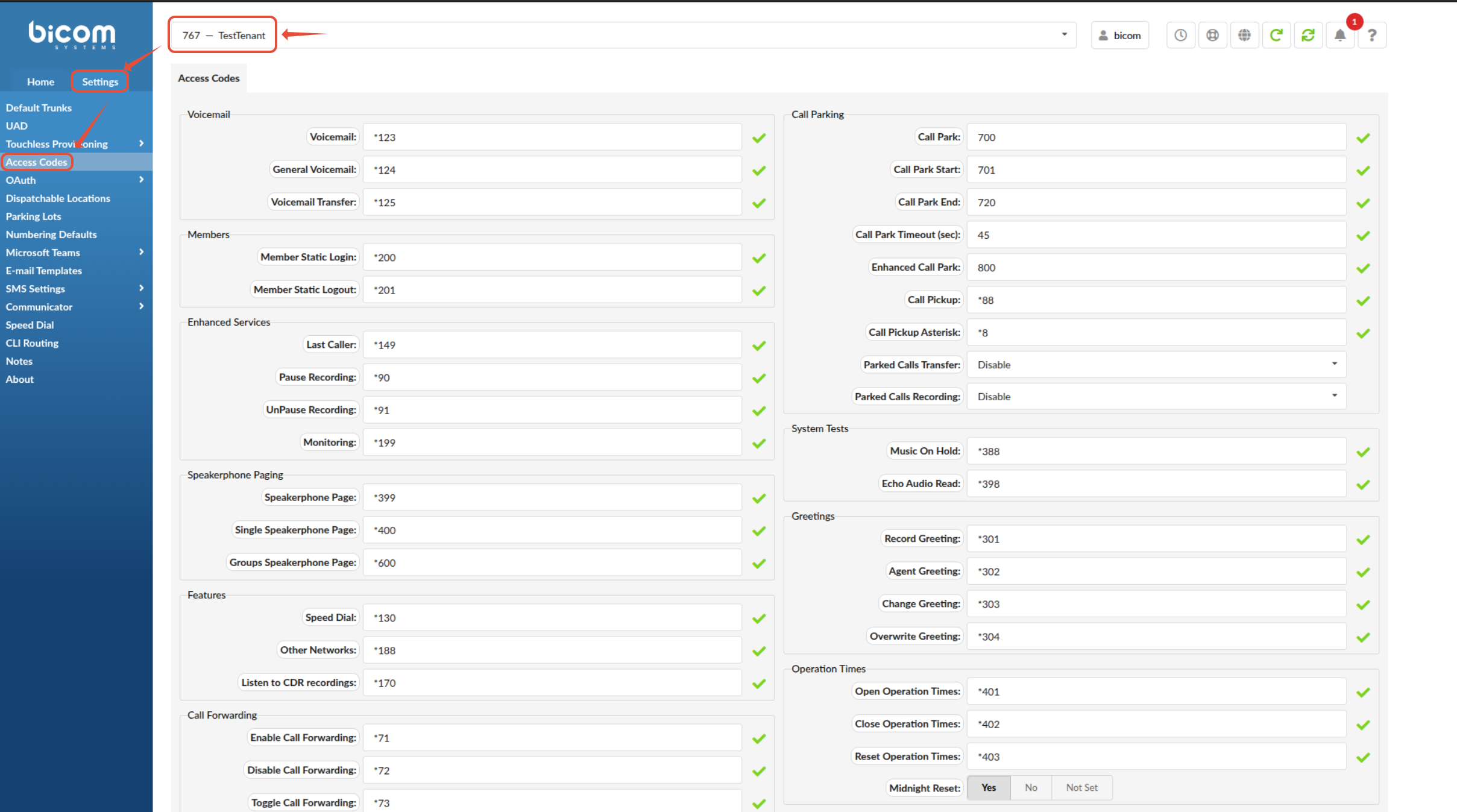
Access codes can be set per tenant.
In order to set the access codes per your needs, you need to navigate to path:
Slave Tenant --> Settings --> Access Codes
Here you can set the access codes per your needs. By default, it is populated with default values but you have ability to change it.
CallerIDs
CallerIDs can be set on many different levels in the PBXware. We are going to describe where it can be set and which setting has the highest priority.
The Caller ID priority is:
1. Extension's Enhanced Services Caller ID
2. Tenant's Default CallerID (If no CallerID is set on the extension level Tenant's Default Caller ID will be used).
3. Trunk Caller ID (If there is no Caller ID set on the extension level and there is no Default Caller ID set in Tenant's settings, the Trunk Caller ID will be used).
Please note, If no Caller ID is set on Extension, Tenant, or Trunk level, the trunk provider might drop the call.
Tenant level
If you navigate to:
Master Tenant --> Settings --> Tenants --> Select a Slave Tenant --> Settings
You will be prompted with the new screen of slave tenants settings. Under the submenu "General Settings", there are some fields that define CallerID behaviour.
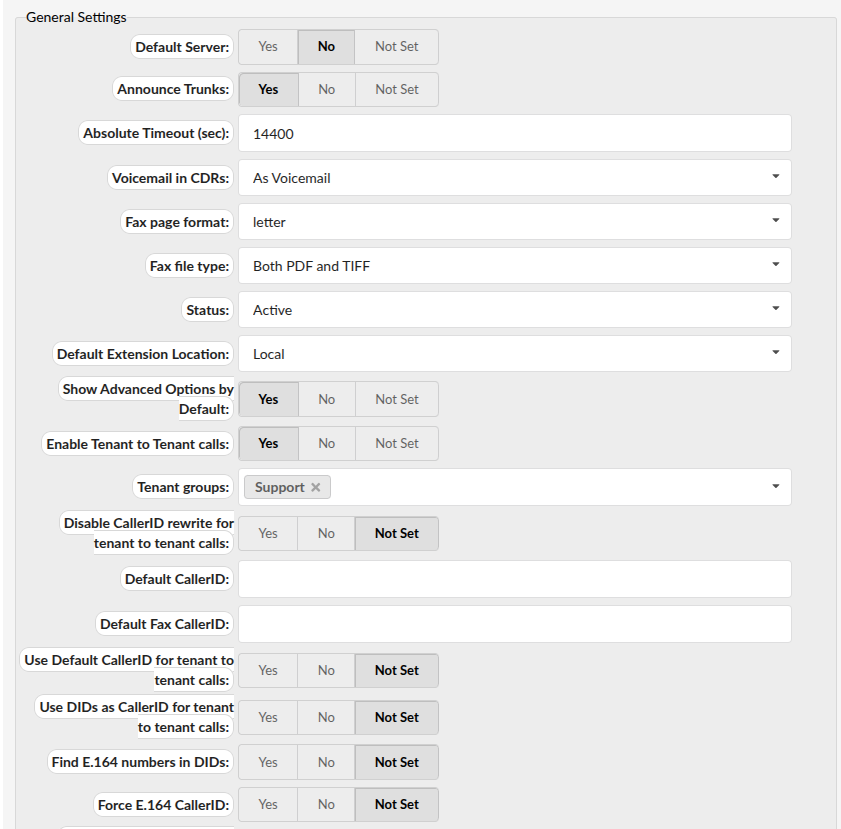
- Enable Tenant to Tenant calls - When this option is enabled, extensions from one tenant will be able to call extensions from another tenant which is done by dialing TENANT+EXT.
- Disable CallerID rewrite for tenant to tenant calls - If enabled, Caller ID on Tenant to Tenant calls will not be replaced and the extension's caller ID will be used.
- Default CallerID - If set, outgoing trunk calls assigned to this tenant will use this Caller ID.
- Use Default CallerID for tenant to tenant calls - Whether Default CallerID should be used for tenant to tenant calls.
- Use DIDs for tenant to tenant calls - Define whether a DID that points to Extension will be used as a CallerID for Tenant to Tenant calls.
- Find E.164 numbers in DIDs - Enable or disable E.164 matching of numbers like set in E.164 fields in DIDs.
- Force E.164 CallerID - When this option is set to Yes, PBXware will try to ensure that the Caller ID used for outbound calls is in E.164 format.
If the extension tries to make an outbound call with Caller ID, not in full E.164 format, the system will first check available Caller IDs set under the extension’s Enhanced Services -> Caller ID.
In case no Caller ID in E.164 format is found, the system will then check the list of Caller IDs under Trunks & Tenants, after which it will check the Default Caller ID set under tenant’s settings, and as a last resort, it will check the trunk’s Outbound Caller ID. In case no Caller ID in E.164 format is detected on any of these locations, the system will not drop the call and the original Caller ID in non-E.164 format will be used, although this might result in the call being dropped by the trunk provider.
Trunk level
If you navigate to:
Master Tenant --> Home --> Trunks --> Select a Trunk --> Settings
You will be prompted with the new screen of trunks settings. Under the submenu "Caller ID", there are some fields that define CallerID behaviour.
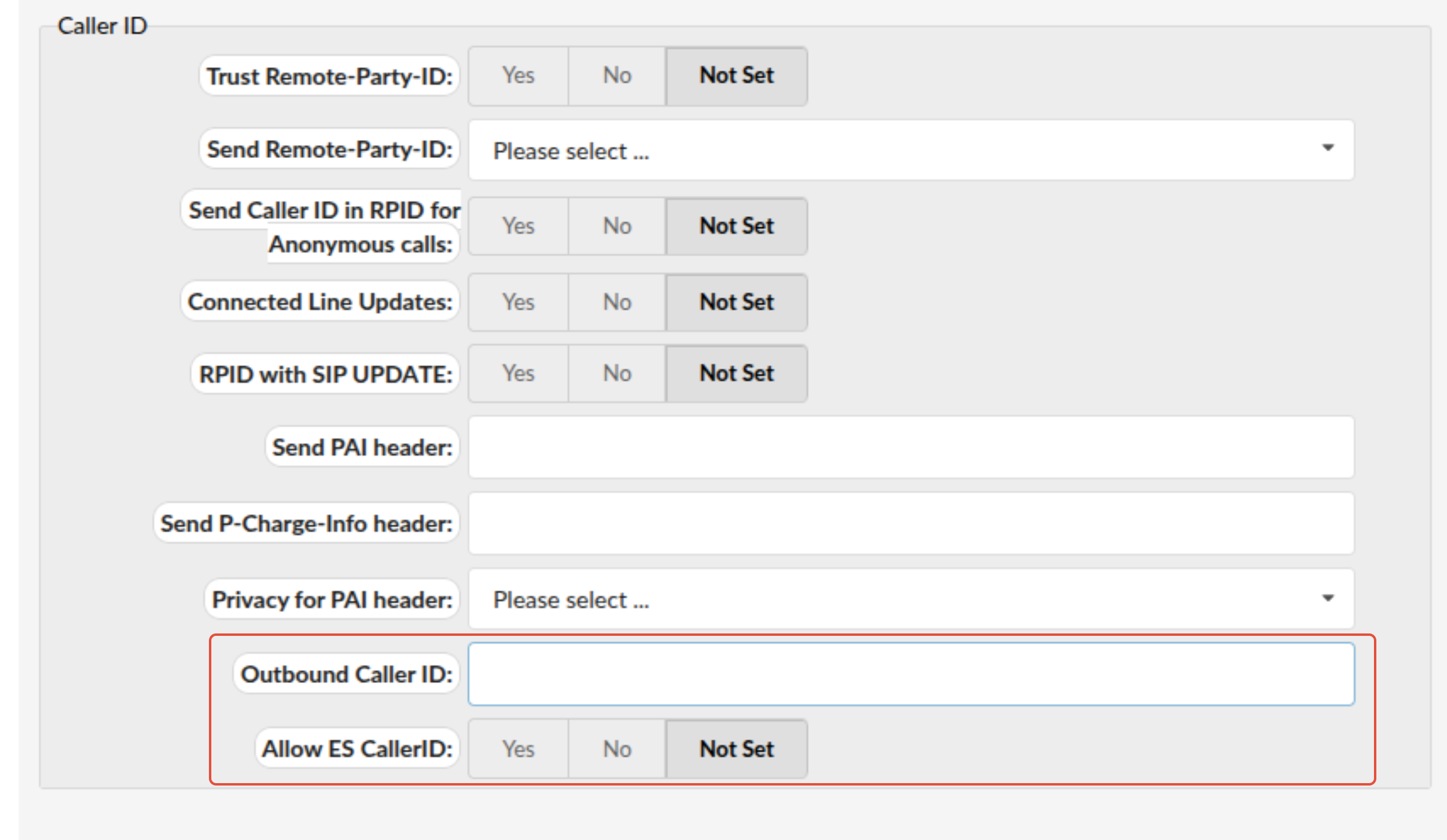
- Outbound Caller ID - If the Caller ID is not set on the extension level, the value provided here will be used for all outgoing calls. Example: 72357524
- Allow ES CallerID - This option defines whether the ES (Enhanced Services) Caller ID will be allowed over this trunk. Each extension can have a custom Caller ID set for each system trunk.
When this option is set to ‘yes’ the extension's Caller ID will be used instead of the trunk's outbound Caller ID.
Extension level
If you navigate to:
Master Tenant --> Select a Slave Tenant --> Extensions --> System --> Select an Extension --> Settings
You will be prompted with the new screen of extension settings. Under the submenu "Permission", there is an "Enhanced Services" section.
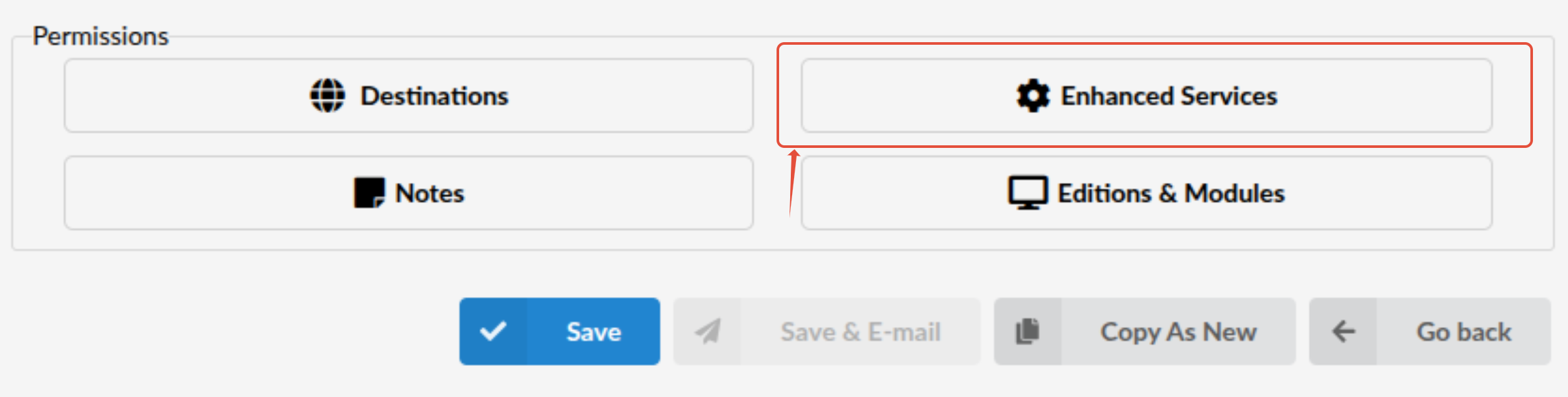
If you open up Enhanced Services section, you will be prompted with new screen.
In order to configure Caller ID, first you need to enable that service. Enabled service has a green check mark. To configure the service, click on the "Settings" button on right-hand side.
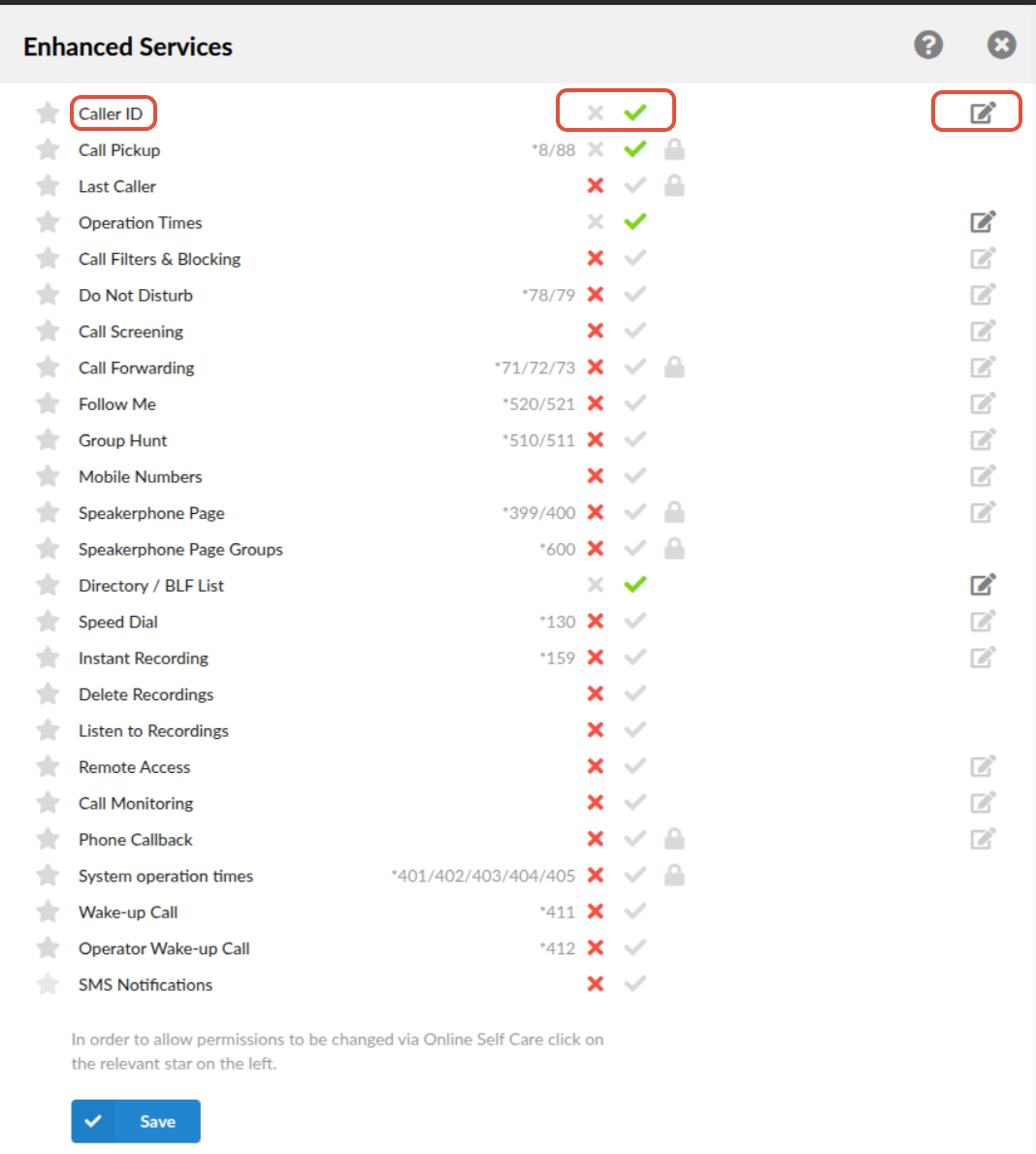
If you click on the "Settings" button on right-hand side for the Caller ID service, you will be prompted with a new screen.
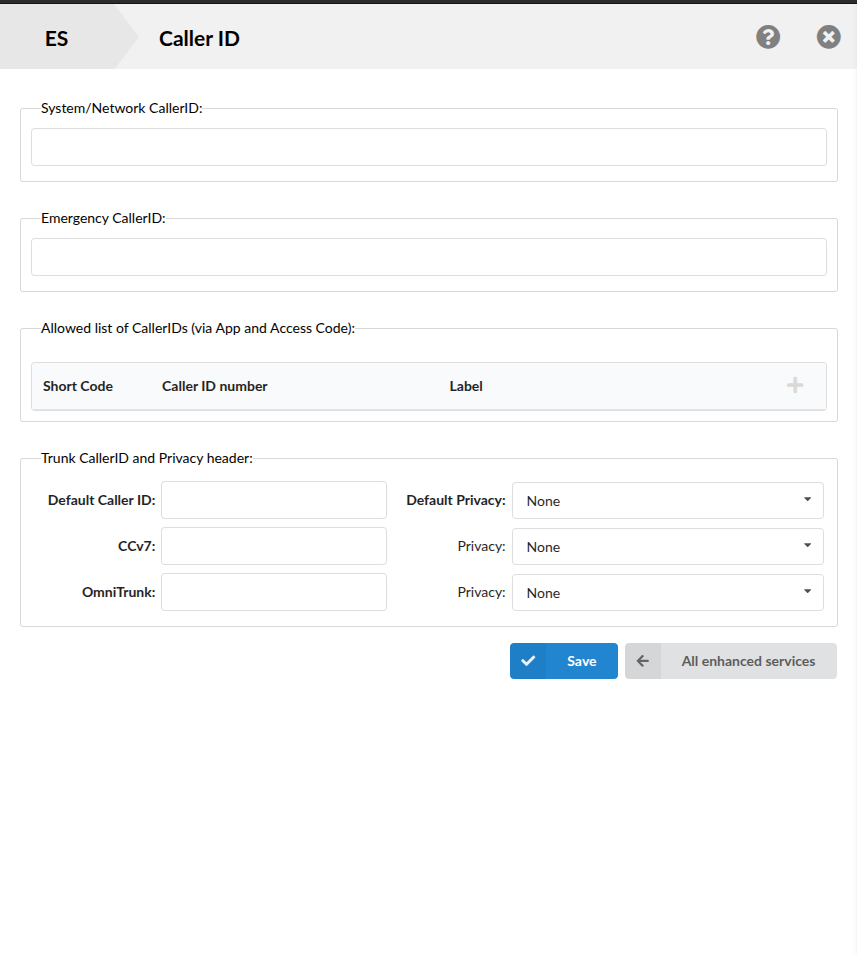
- System/Network Caller ID - option is used to define the default Caller ID of the specified Extension. The Caller ID that is defined here will be used for local calls, i.e calls within the system.
- Emergency Caller ID - field is used to define the Caller ID which will be used for calls to Emergency Services number.
- Allowed List of Caller IDs (via App and Access Code) - this feature is used to define a list of Caller IDs that can be used for outbound calls. If users define multiple Caller IDs here, they will be able to choose which Caller ID they wish to use for their calls. This feature can be used with gloCOM (via App) or with \*65 Access Code.
When users define the "Caller ID Number" and "Label" fields (e.g 195412345678 / "Main Caller ID", and when they make a call through gloCOM they will have a dropdown list of all Caller IDs they have defined and they will be able to choose one for that specific call. When used with Access Code (\*65), users will need to dial: \*65\*CALLERID*NUMBER'
Short Code is used to define a single digit, which will replace the "Caller ID Number" so users do not have to enter the entire Caller ID manually. In case there is no Caller ID matching the dialled Short Code the call will fail, otherwise the Caller ID associated with that Short Code will be used. - Trunk CallerID and Privacy header - is used to define an outbound Caller ID. For each Trunk which is allowed for a Tenant on which the Extension is located, there will be a separate field in which a custom Caller ID can be set when the user is making a call over that specific trunk.
NOTE: The best practice for setting up Trunk Caller ID is to set a proper Caller ID, for example 195412345678, as this is the Caller ID for outbound calls.